Claude & Codex Local Invocation of SHOPLINE MCP Tools/Skills for Store Operations (Beta)
Note:
Local execution requires permission to run your local code. You must grant “Full Disk Access” (under Privacy & Security settings) to the applications used for local execution—such as Terminal, VS Code, or Claude—by following these steps:
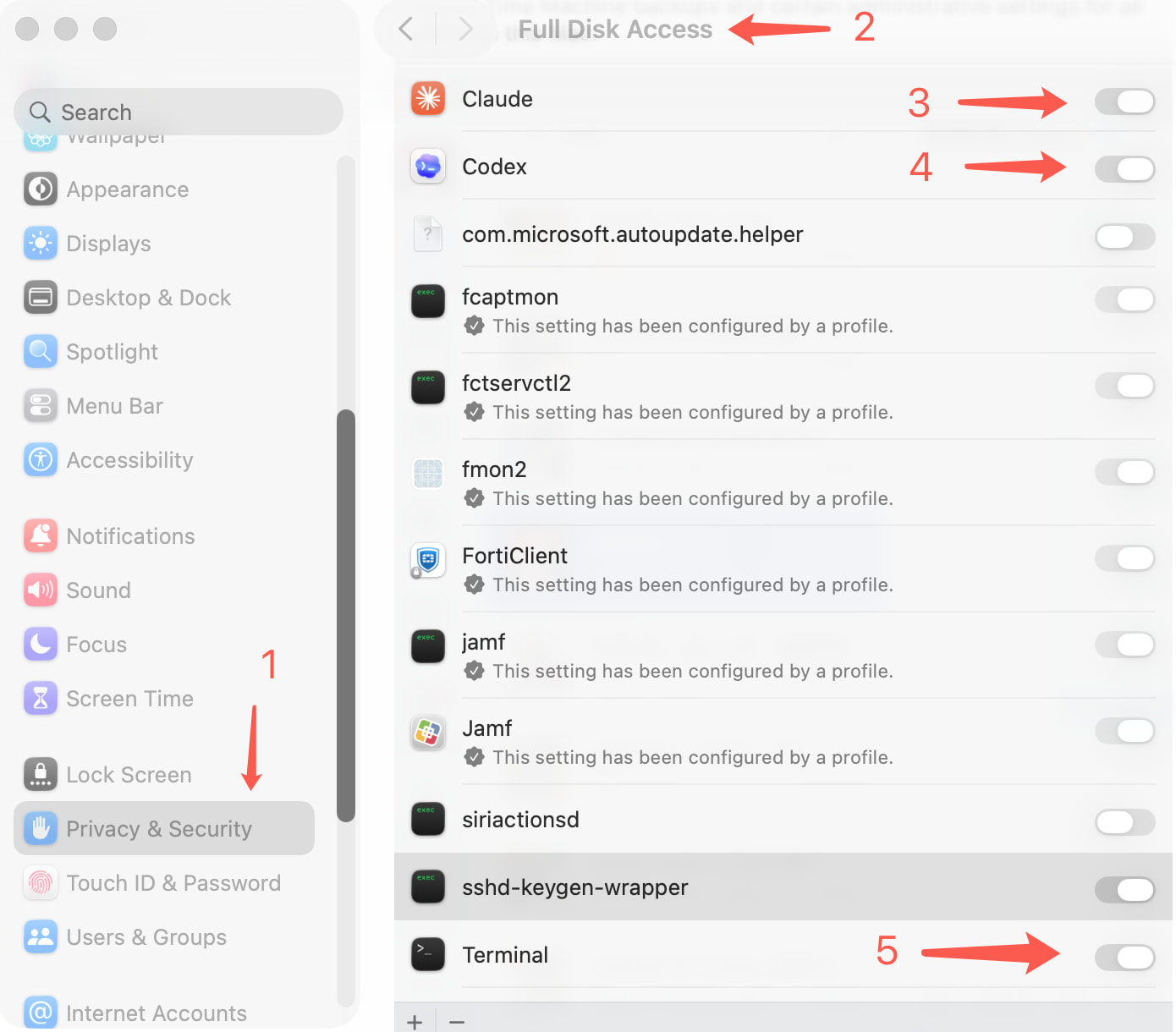
MAC Claude Workflow
1. Prerequisites
-
Claude desktop client, a Claude account, and a stable network connection.
-
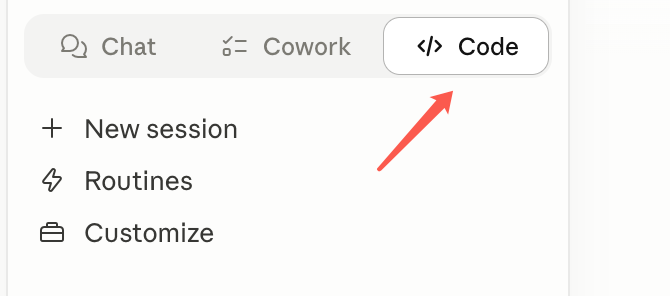
For local execution, we recommend using Claude Code or Cowork, because they can manage code-run permissions and reduce the number of times you need to approve execution.
2. Download the SHOPLINE MCP Extension
-
Alpha internal testing: (link to be added)
-
Download:package:
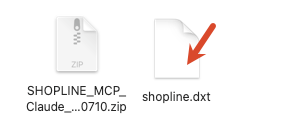
SHOPLINE_MCP_Claude_mac20260710.zip (3.8 MB)
3. Enable Required Settings
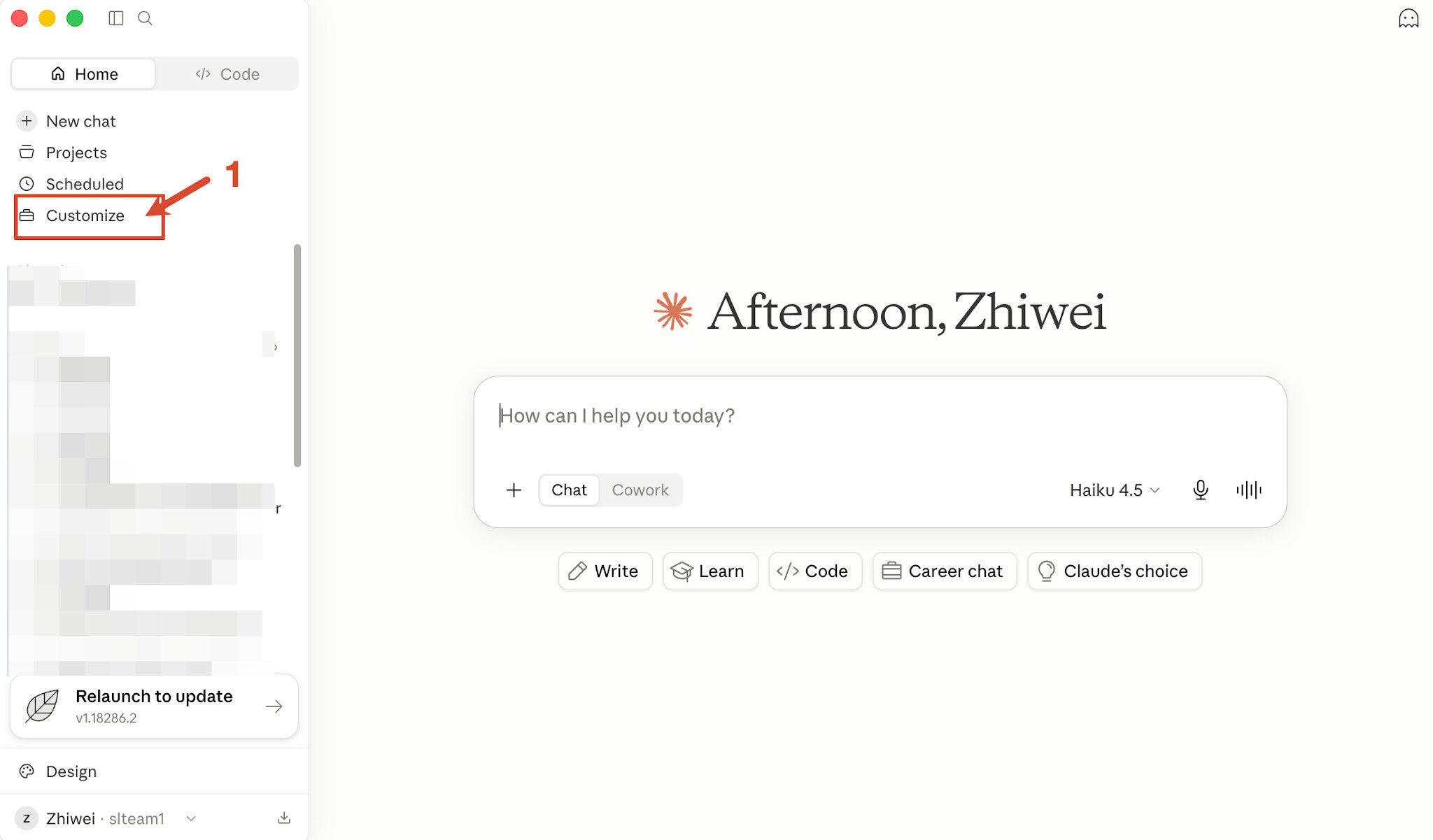
Open Claude → click your avatar (top right) → Customize → Extensions → scroll to Advanced Settings, make sure both options are enabled:
-
Enable auto-updates for extensions
-
Use Built-in Node.js for MCP
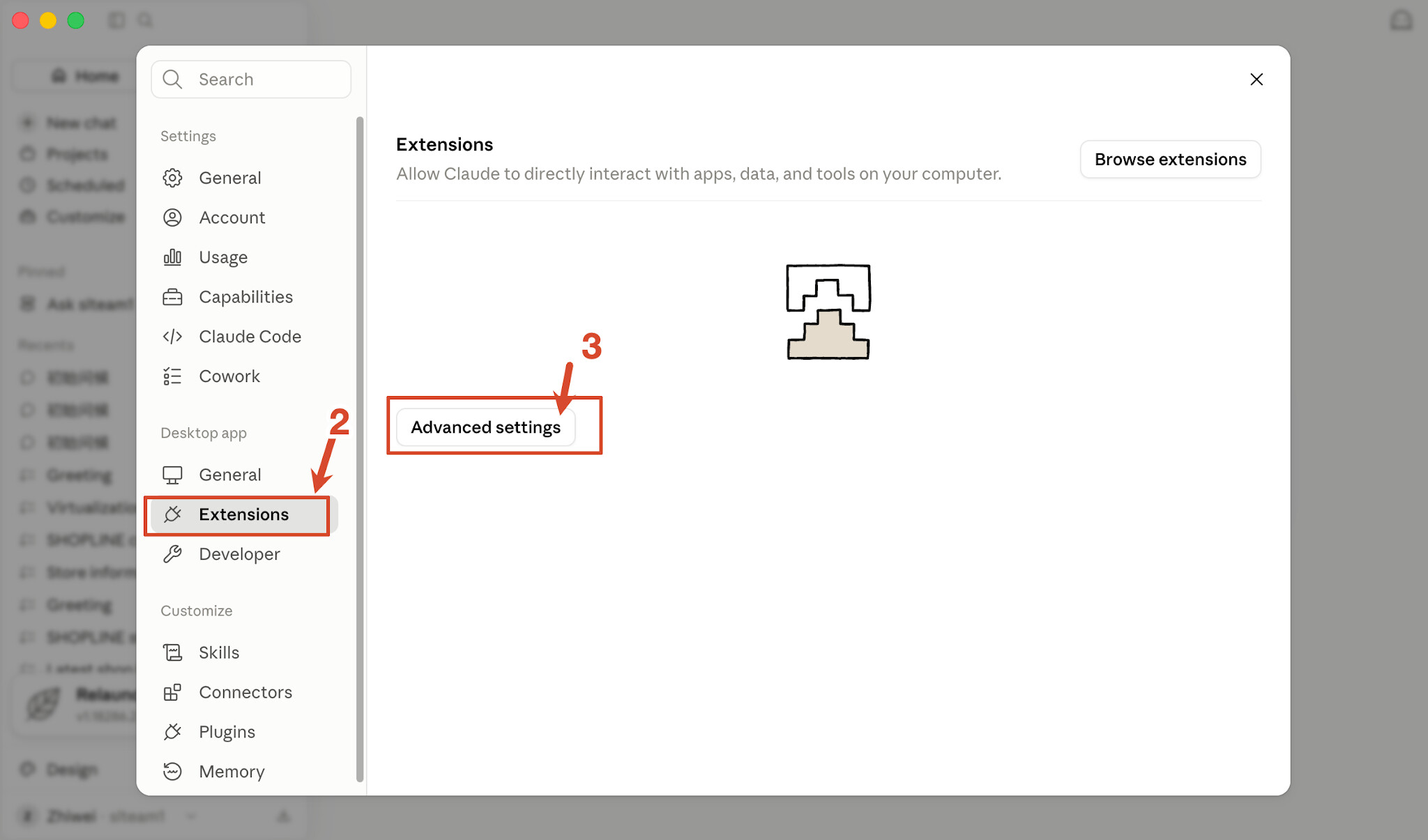
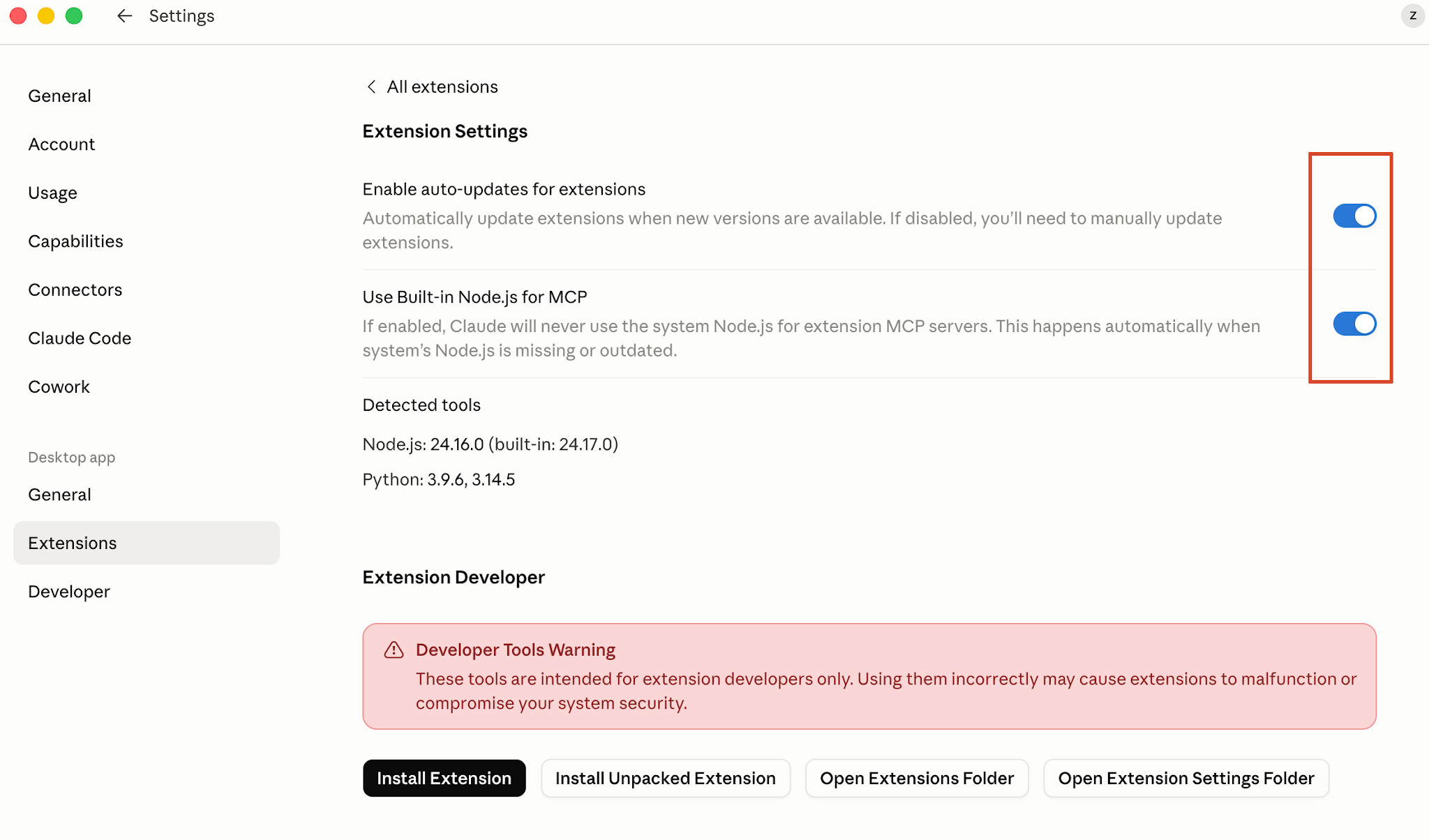
 If either toggle is grayed out, you are on an Enterprise plan. Please contact your administrator to enable these settings before proceeding.
4. Install the Extension
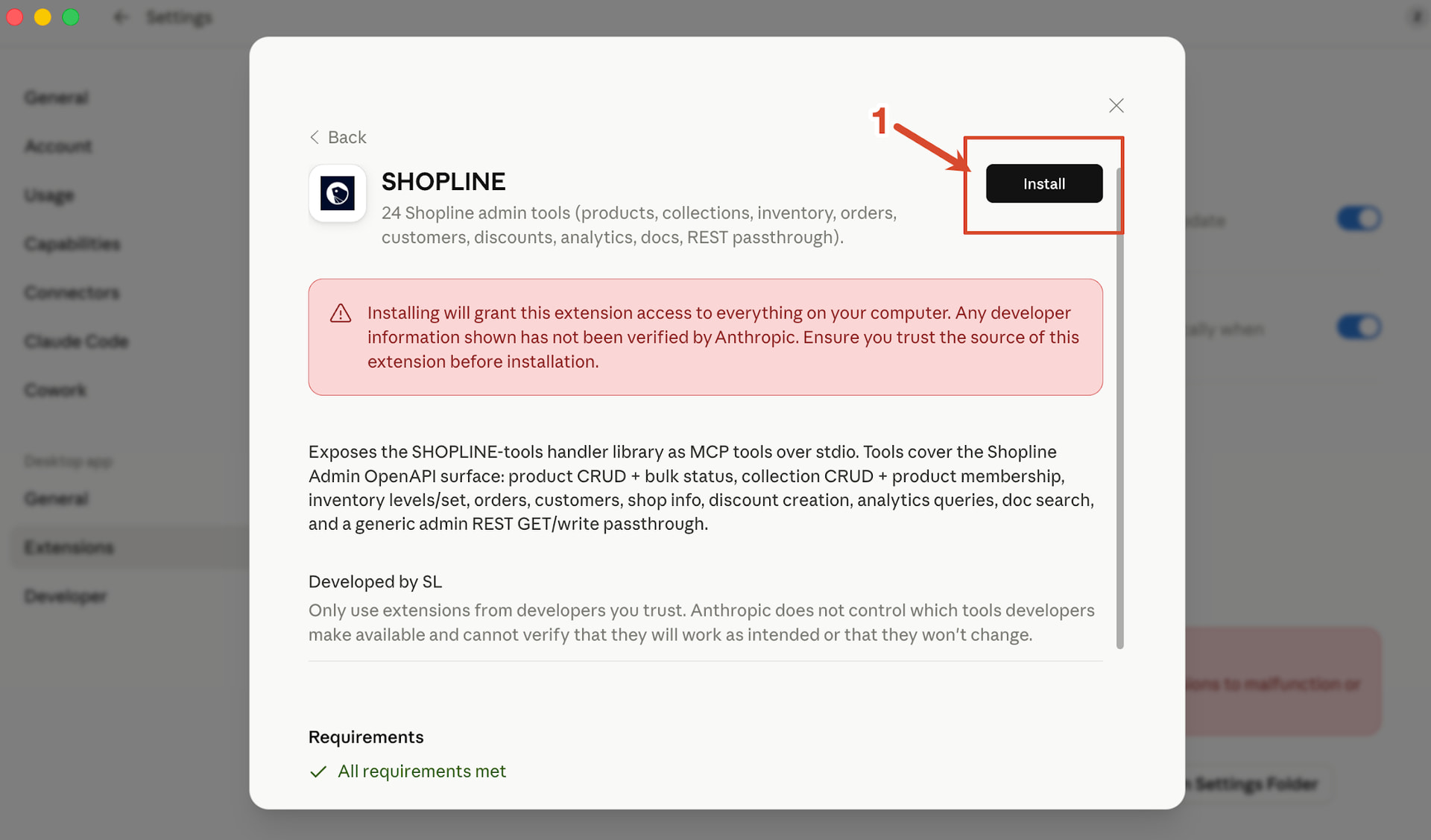
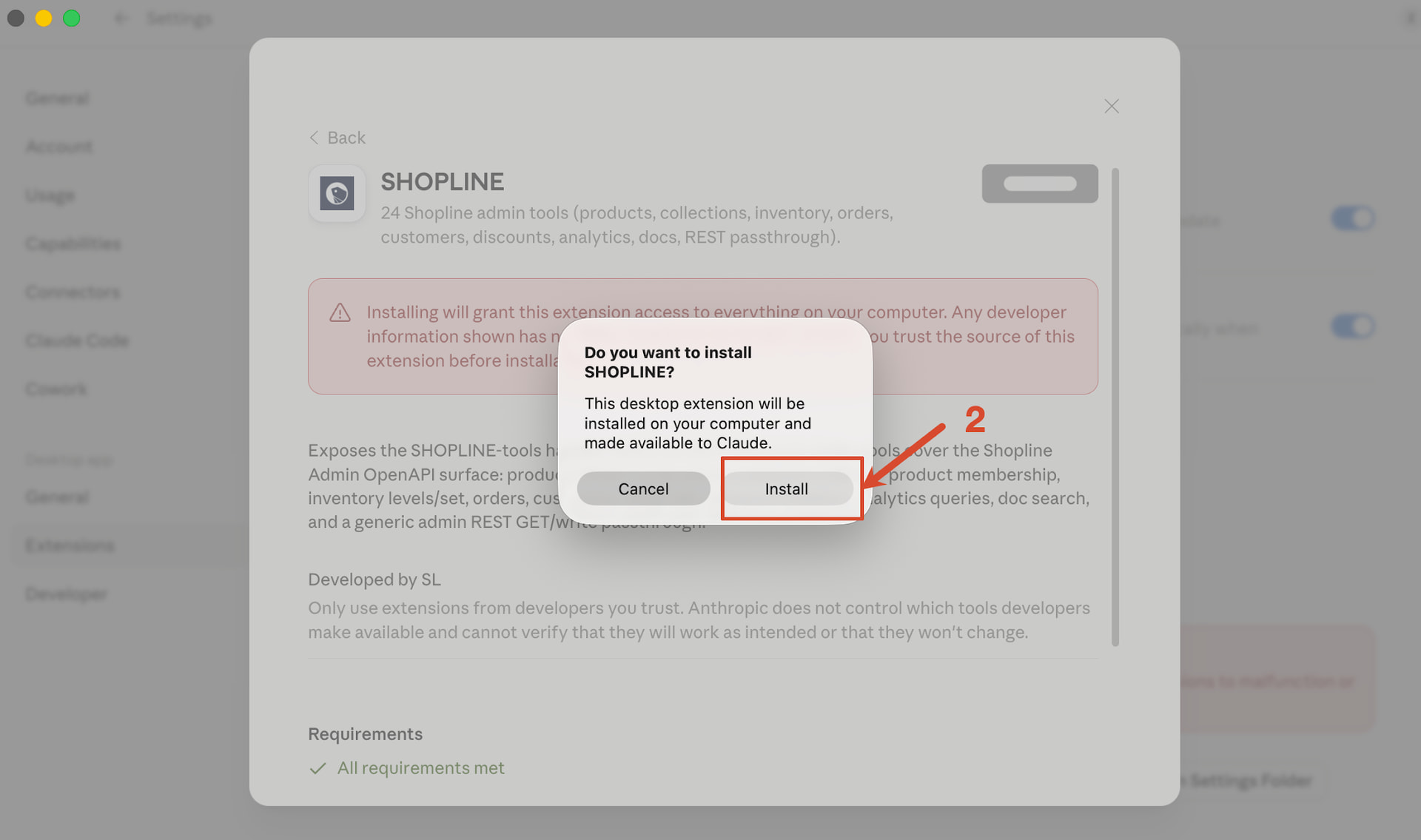
Double-click shopline.dxt — Claude will automatically detect and open the installation prompt.
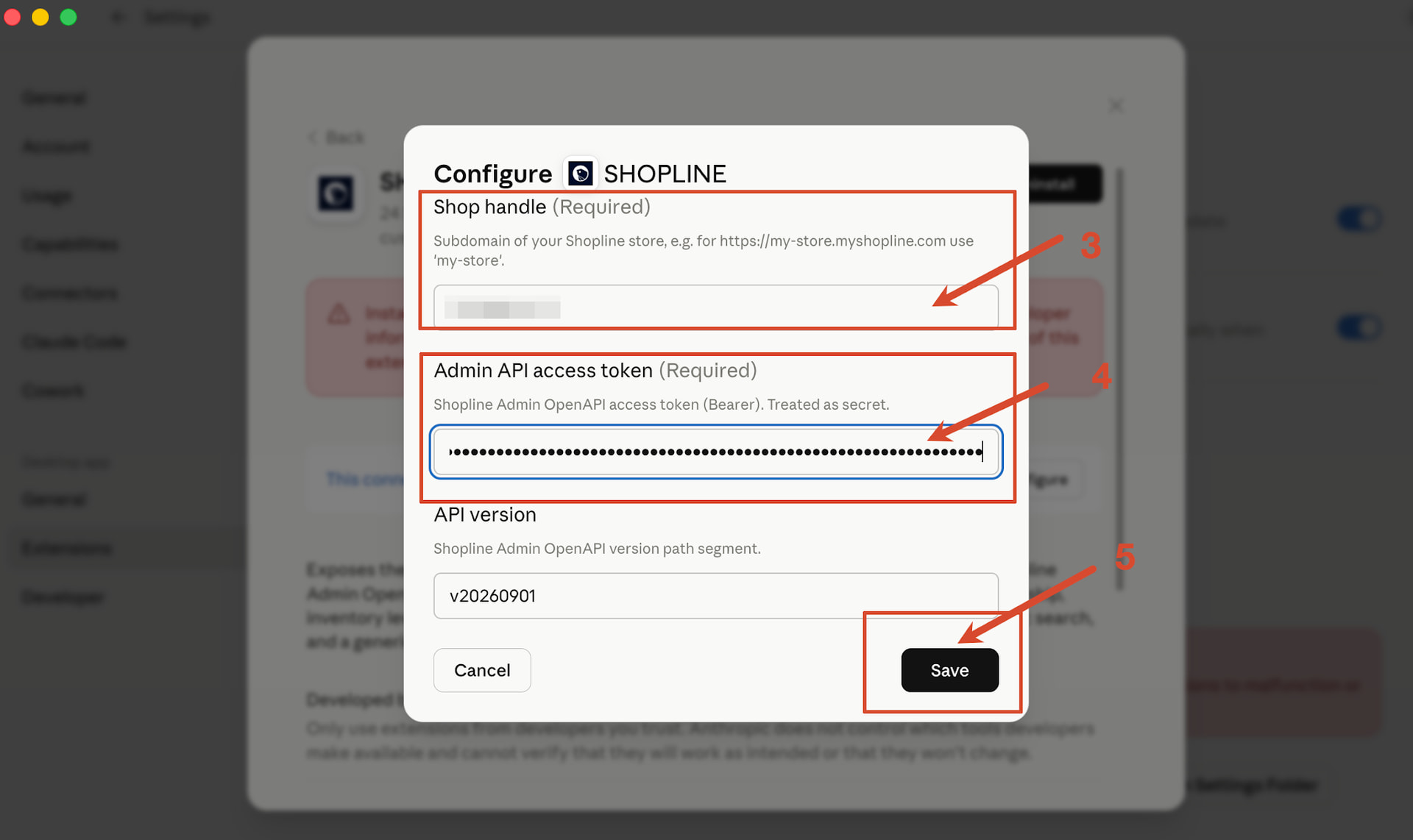
5. Configure Store Credentials
Fill in the following fields when prompted:
-
Shop handle: your store name (the * part of *.myshopline.com)
-
Admin API access token: your API Token
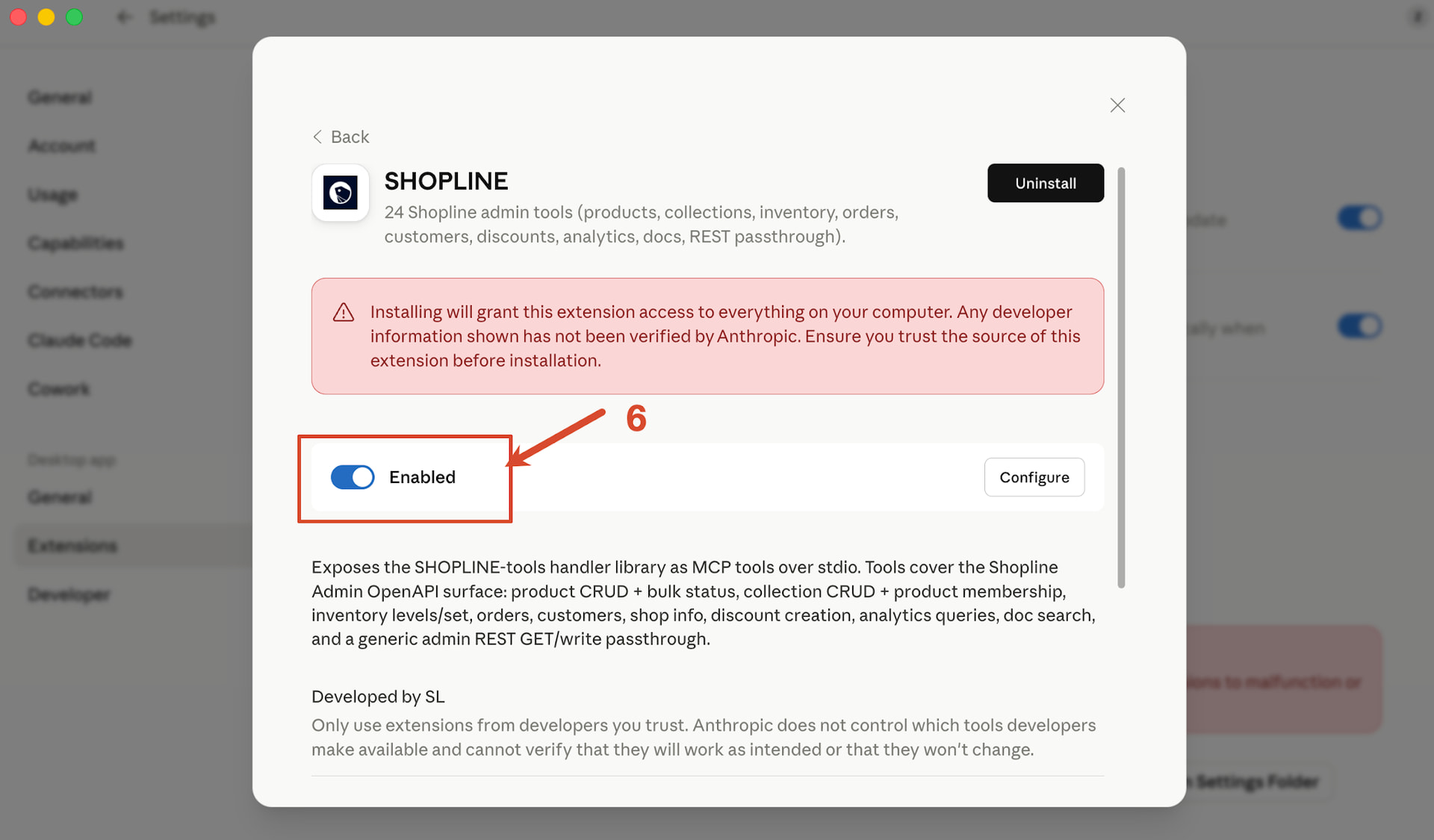
Make sure the Enabled toggle is on.
6. Configure Tool Permissions (Optional)
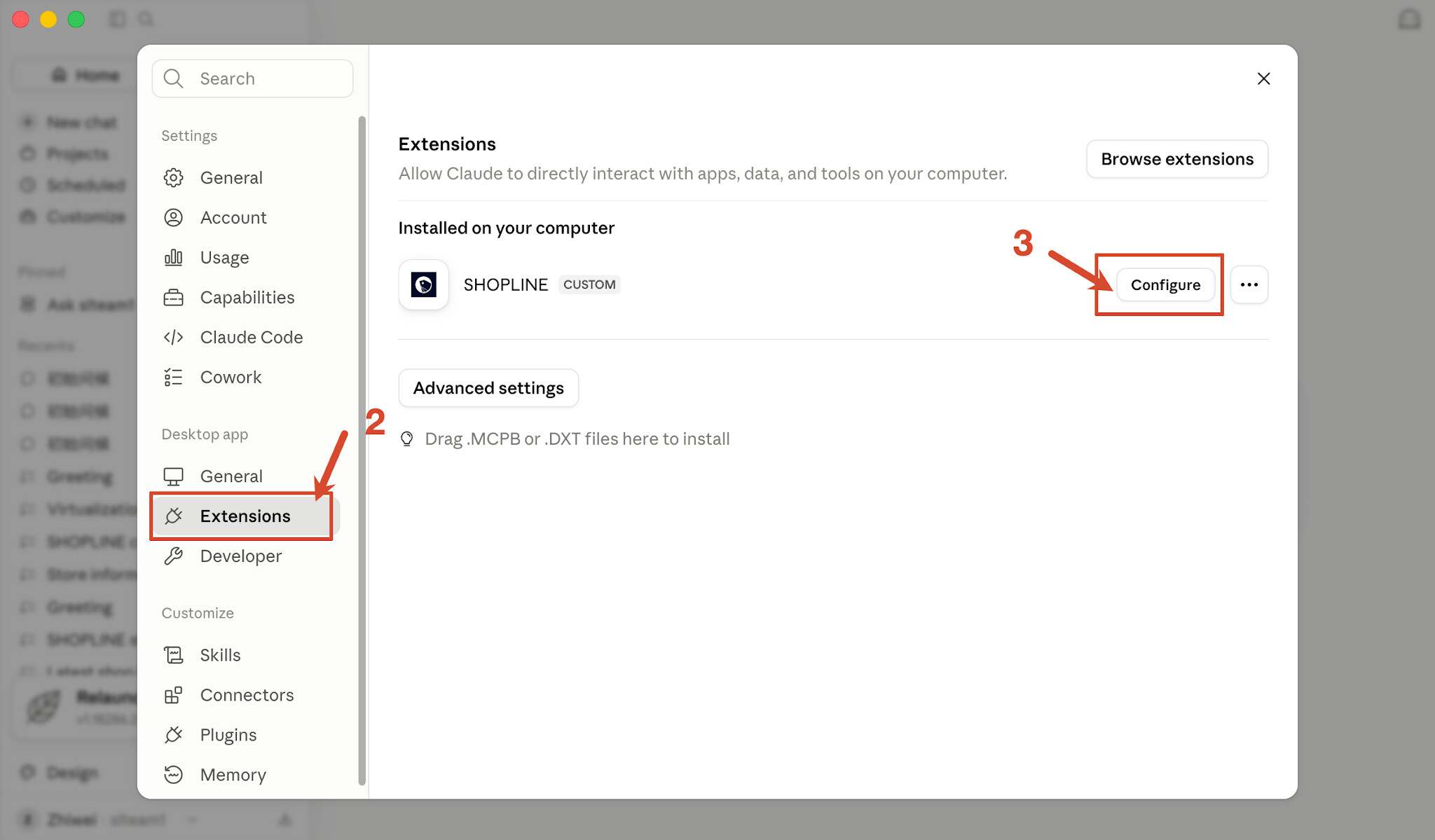
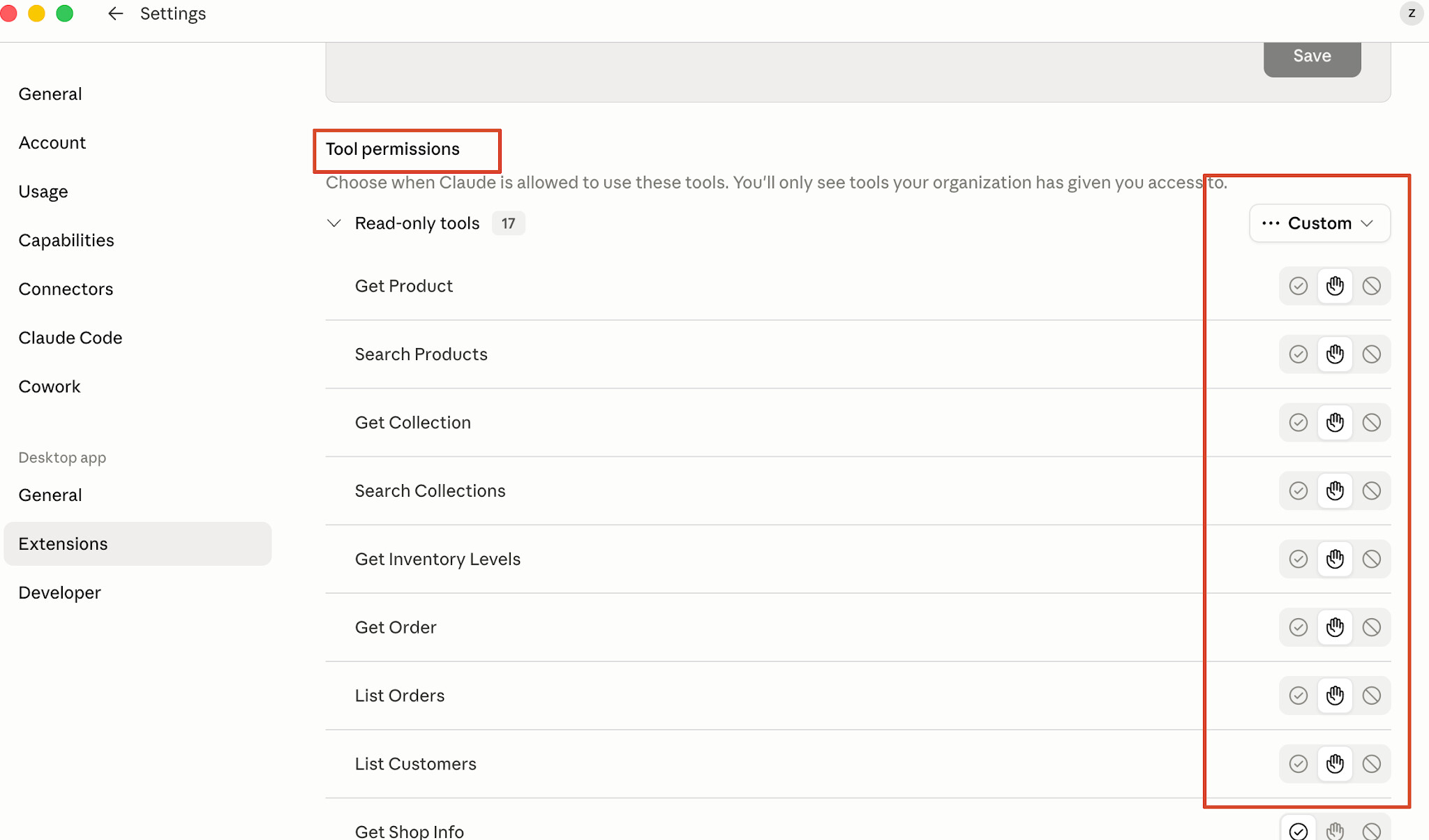
Go to Extensions → find SHOPLINE → click Configure on the right → under Tool permissions, select Custom to enable or disable specific tools as needed.
7. Notes
Please make sure SHOPLINE in Connectors remains enabled during use.
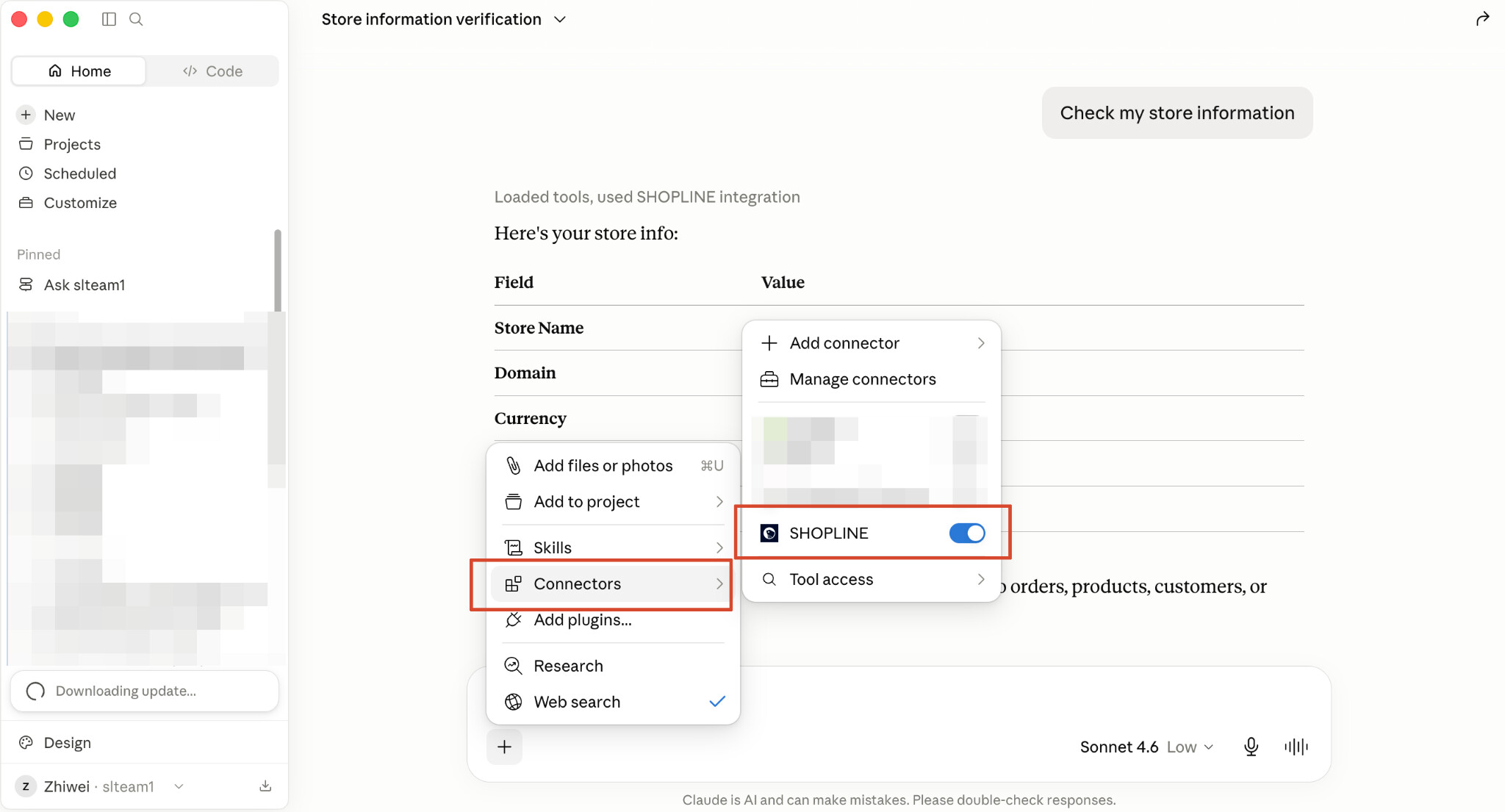
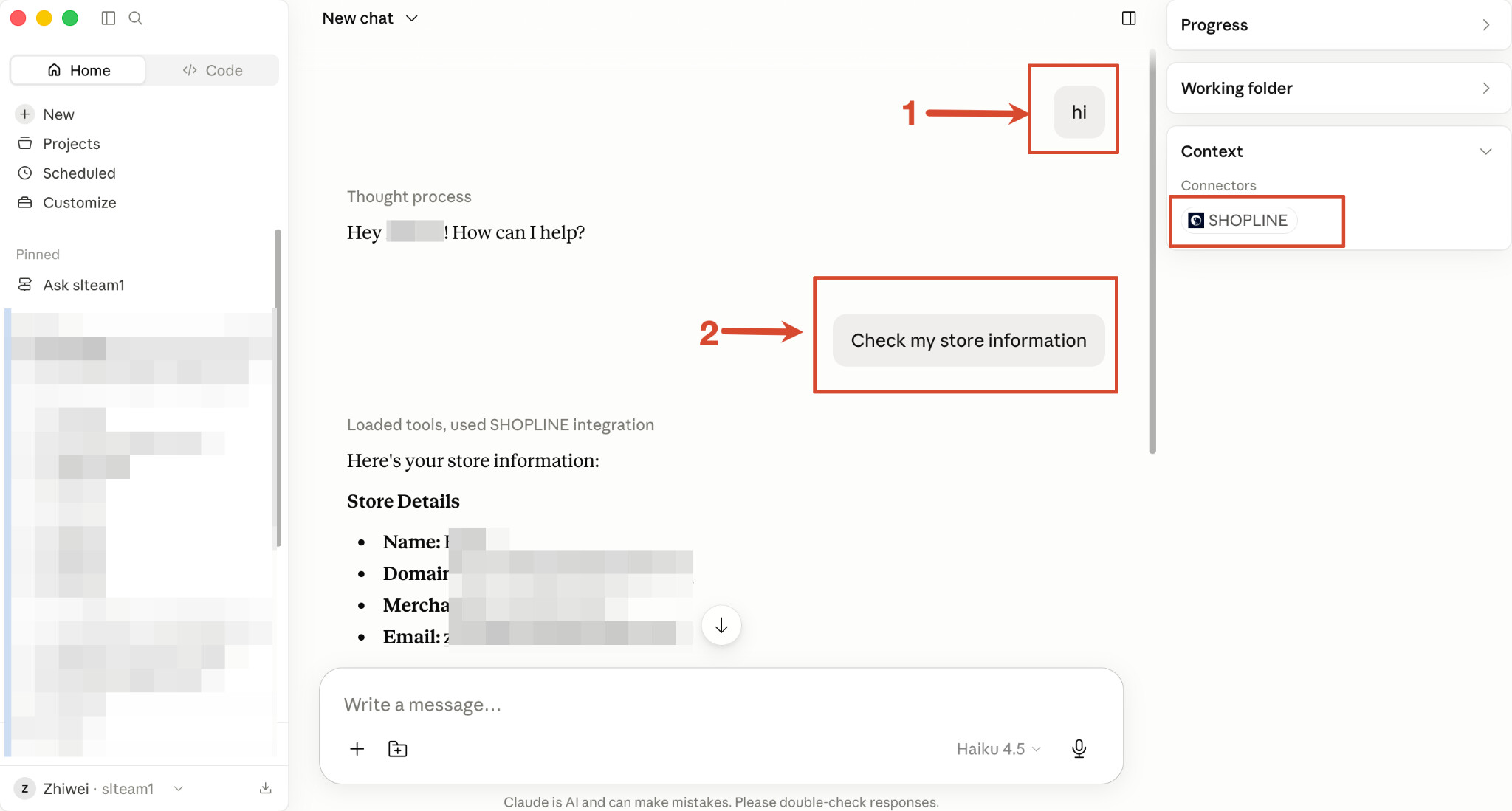
After launching: when entering Cowork mode, the first message will not receive a response (MCP Server handshake is not yet complete). From the second message onwards, everything will work normally.
8. Skill Integration
-
Use the following package for upload:
-
More open-source link instructions will be added later.
-
Alpha internal testing package:
SHOPLINE_Claude_Skill.zip (9.5 KB)
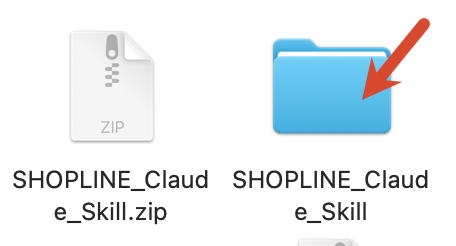
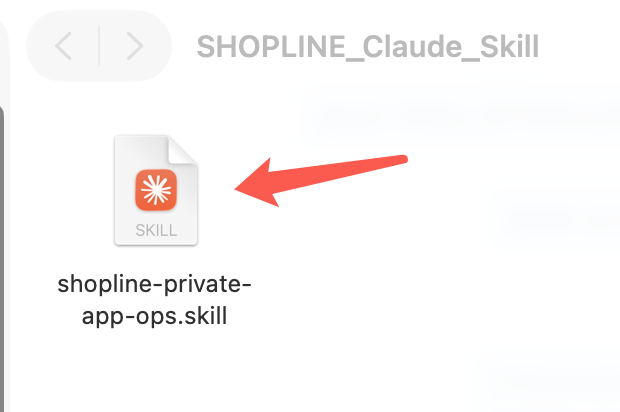
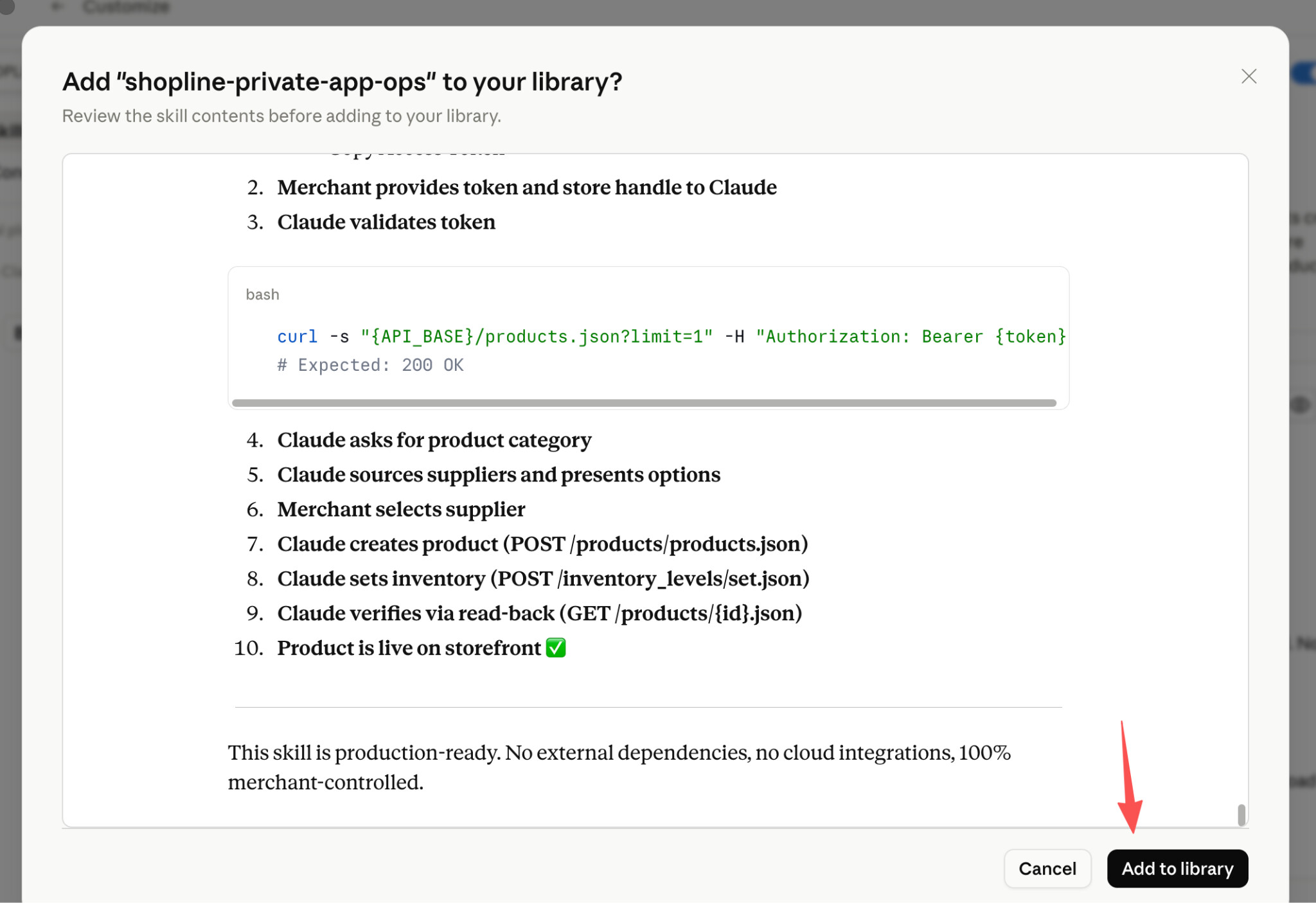
- Double-click the skill file, then click Add to the Library.
Windows Claude Workflow
1、Prerequisites
-
Claude desktop client, a Claude account, a stable network connection
-
For local execution, we recommend using Claude Code or Cowork, because they can manage code-run permissions and reduce the number of times you need to approve execution.
2、Download & Extract
-
Alpha internal testing: (link to be added)
-
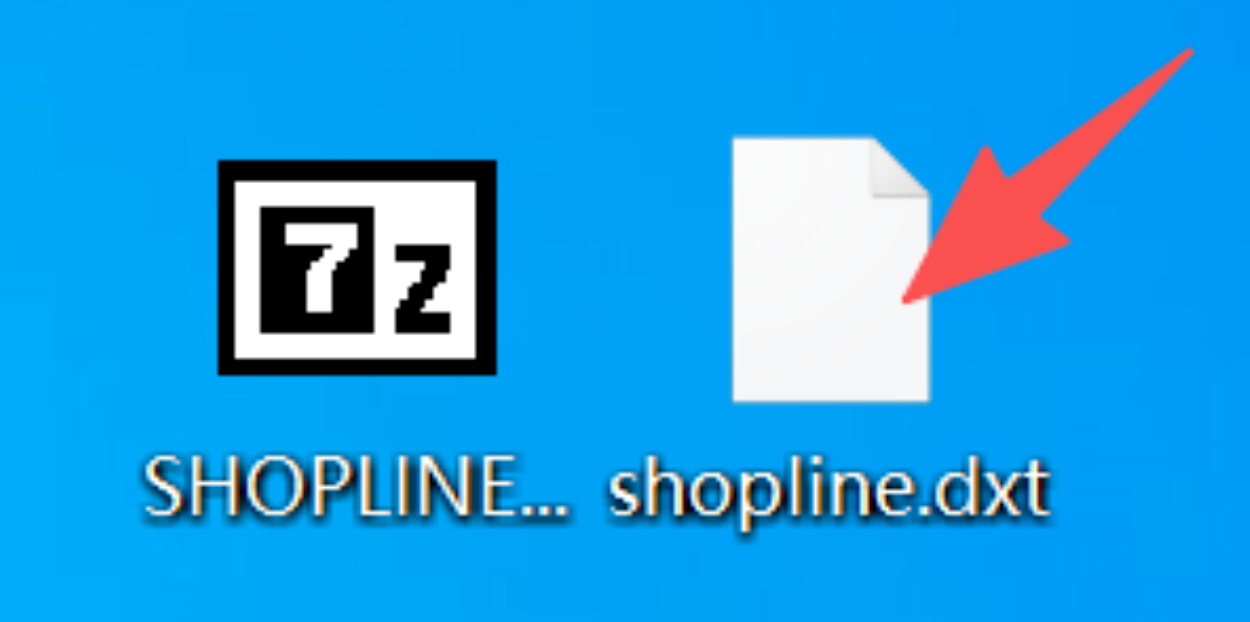
Download:package:
3. Enable Required Settings
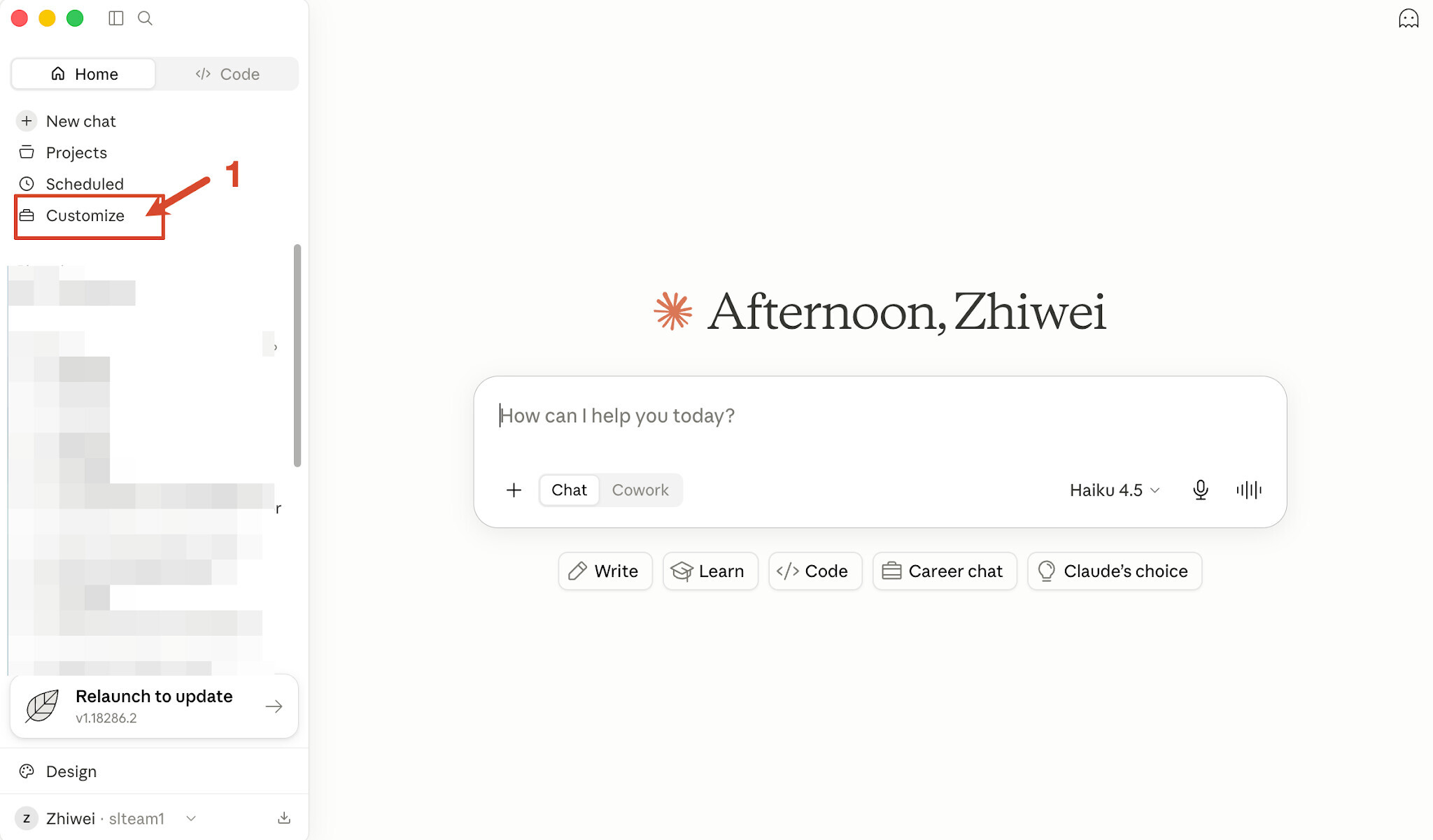
Open Claude → click your avatar (top right) → Customize → Extensions → scroll to Advanced Settings, make sure both options are enabled:
-
Enable auto-updates for extensions
-
Use Built-in Node.js for MCP
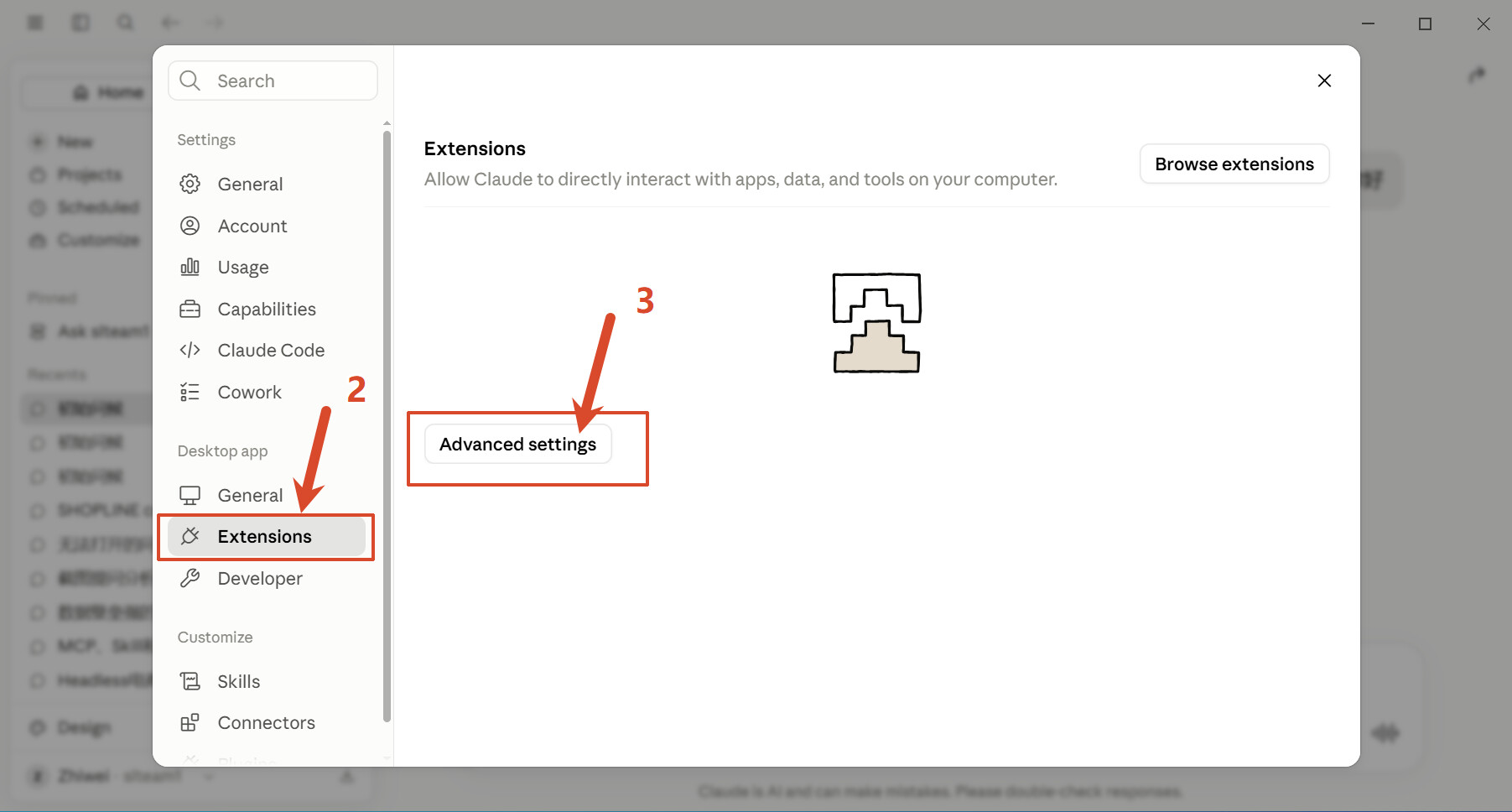
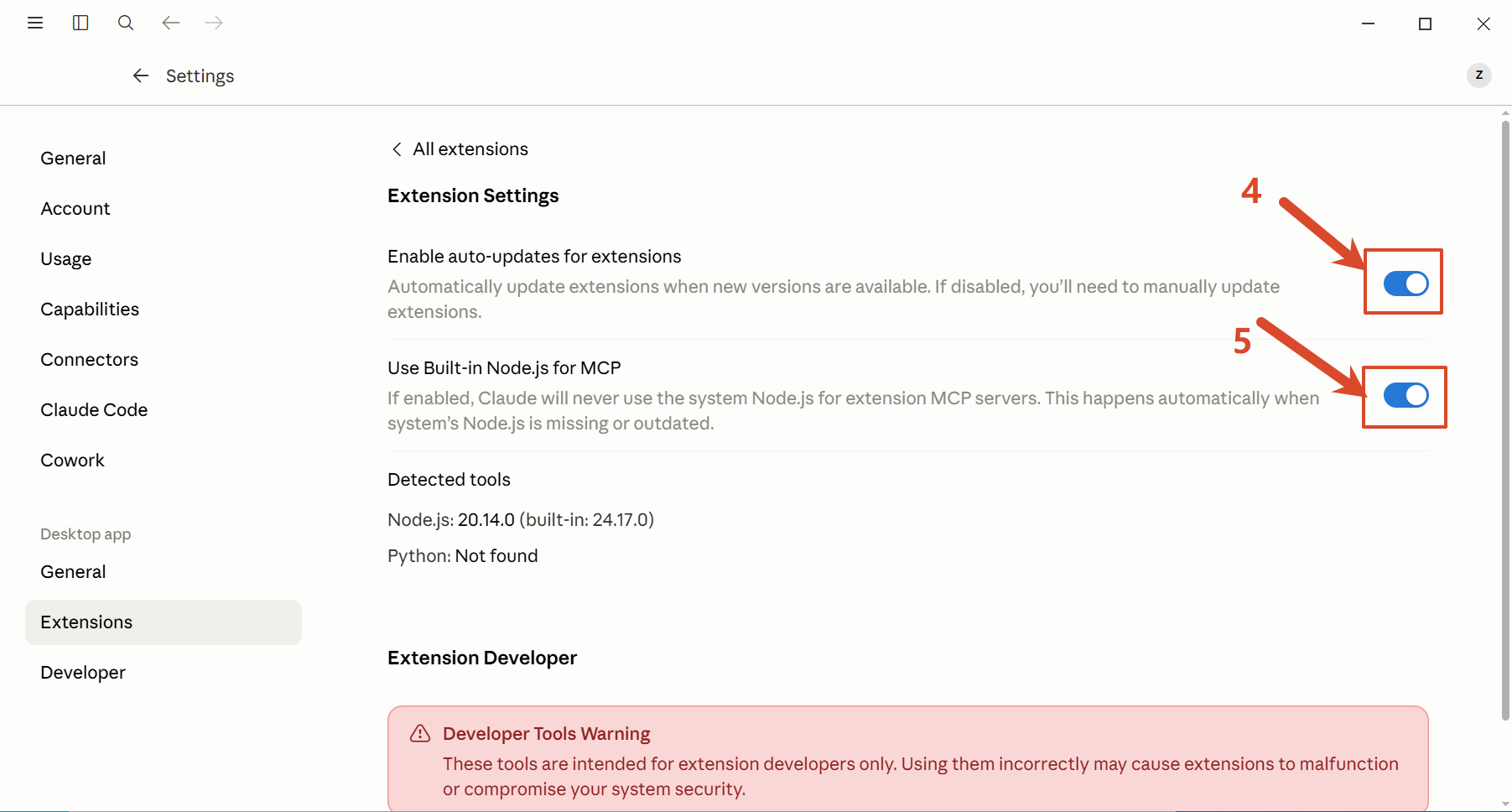
- If either toggle is grayed out, you are on an Enterprise plan. Please contact your administrator to enable these settings before proceeding.
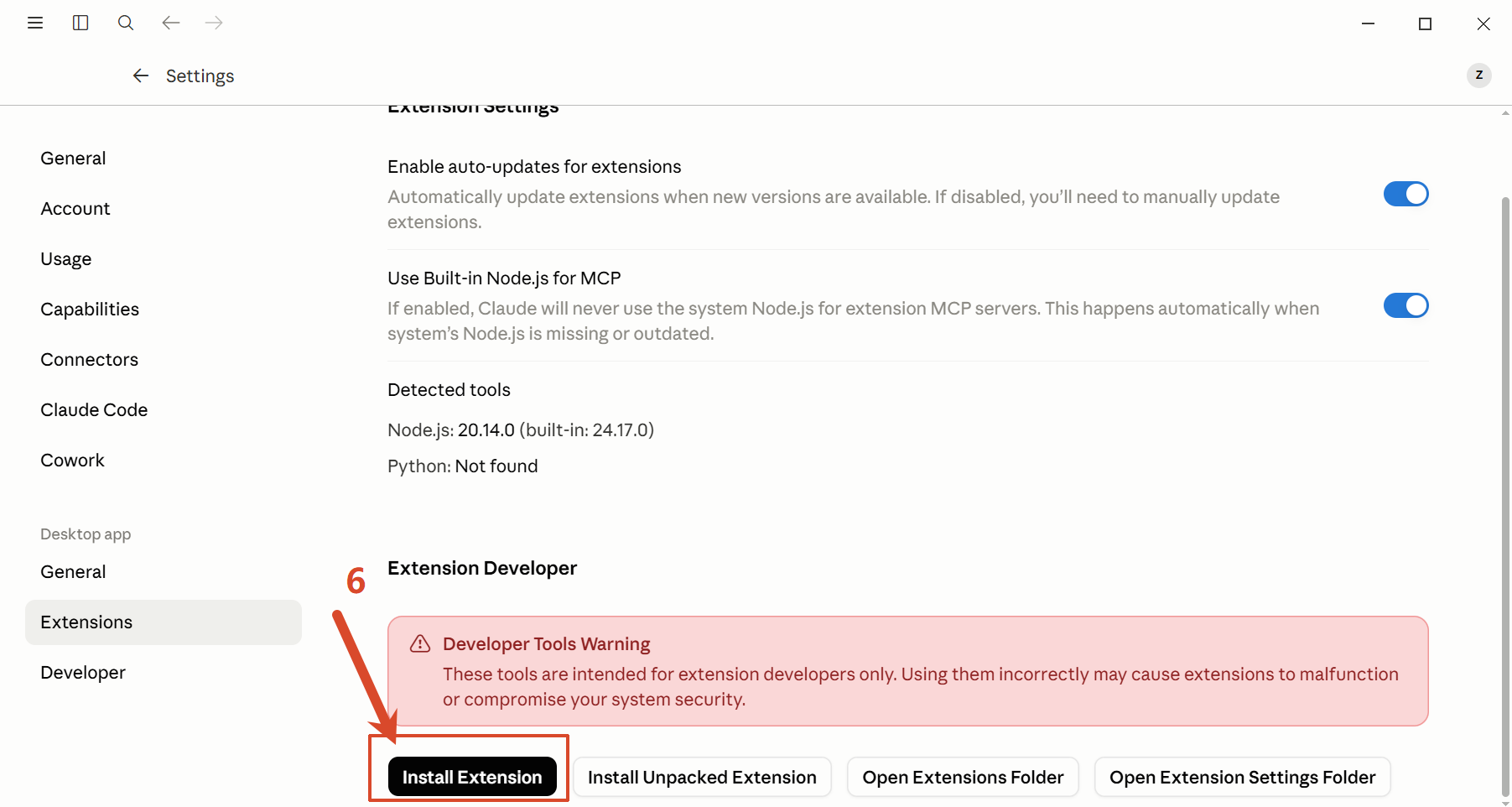
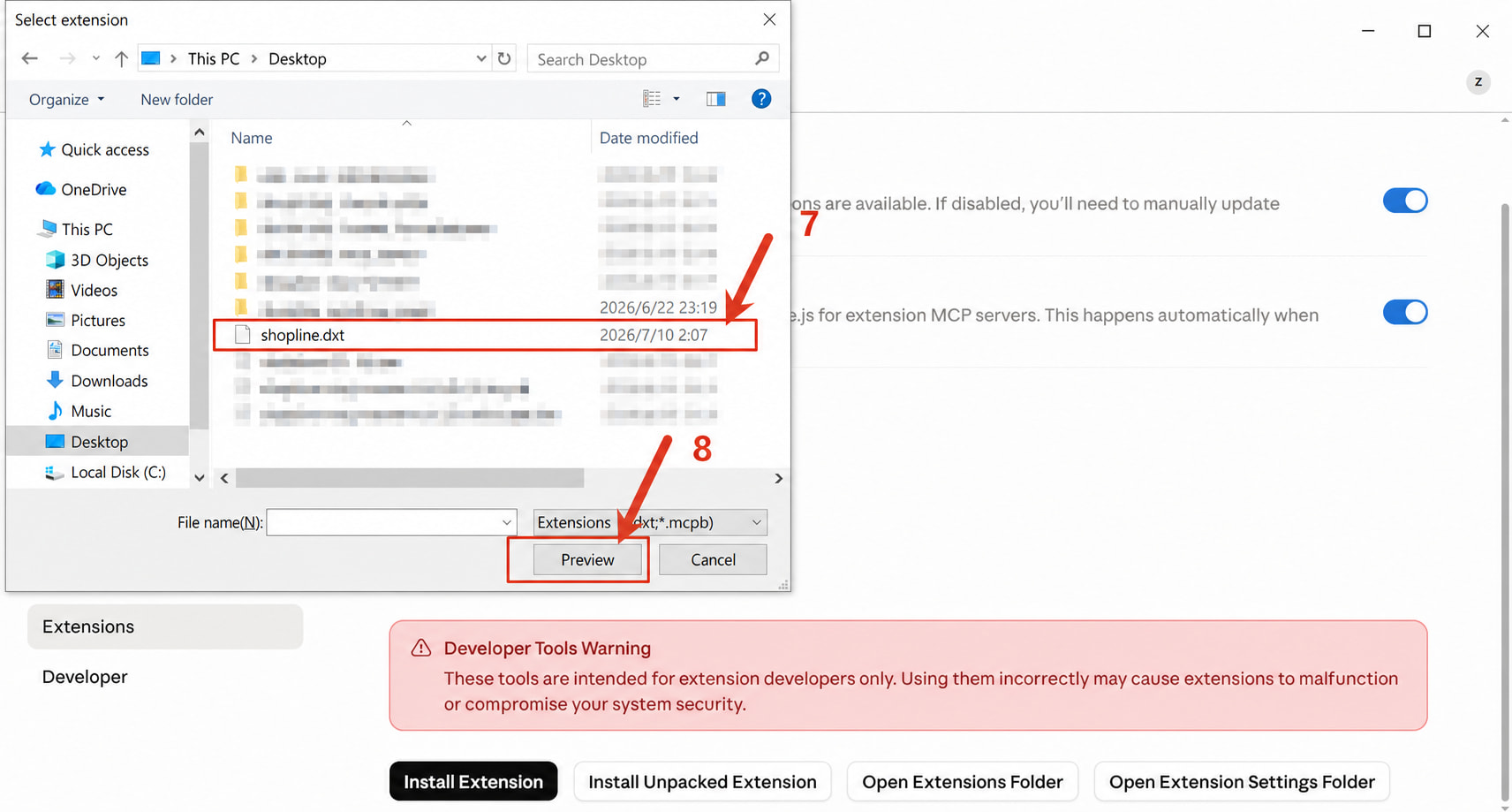
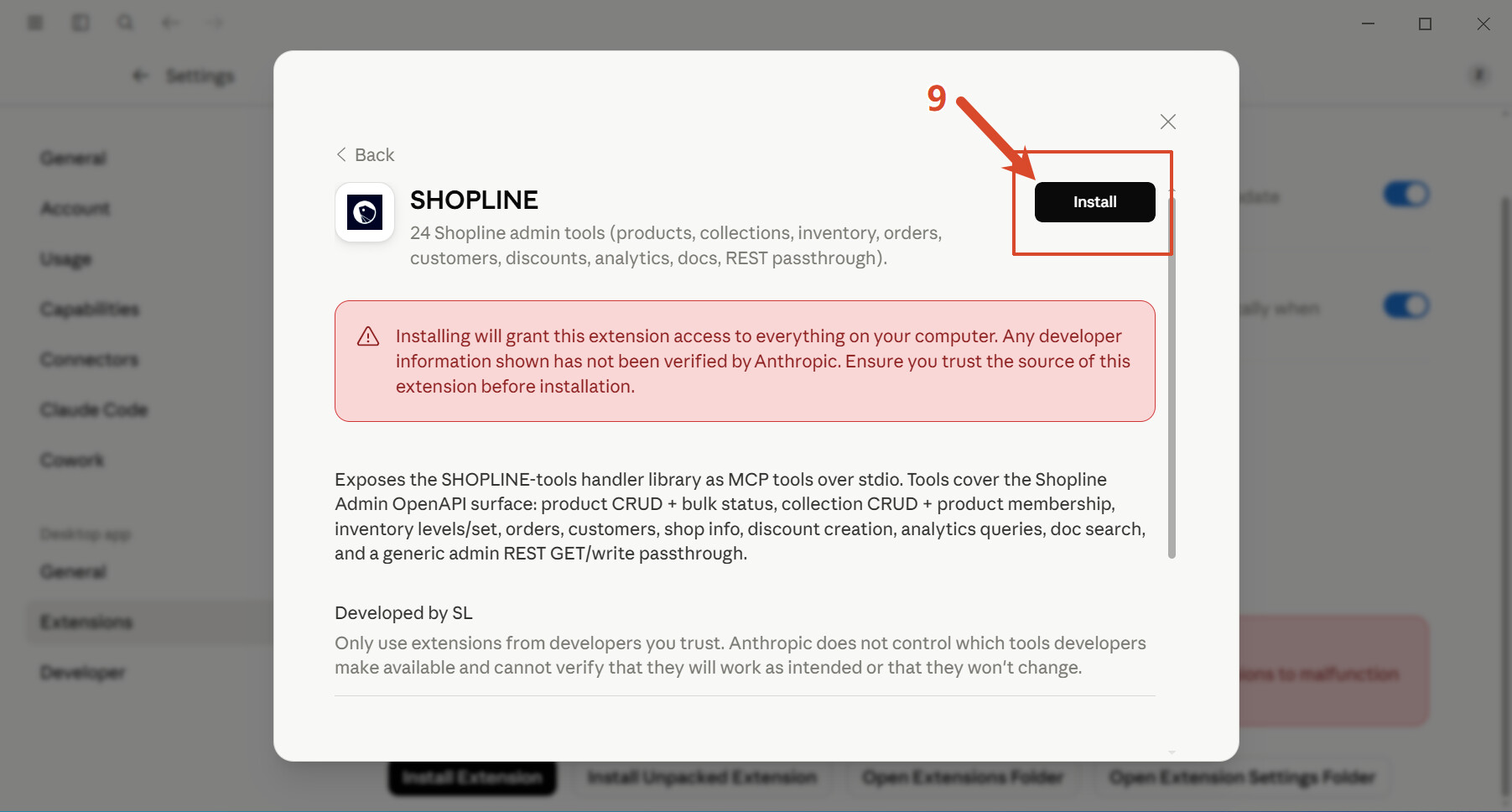
4. Install the Extension
On the same page, scroll to the bottom and click Install Extension. Select the shopline.dxt file you extracted in Step 2.
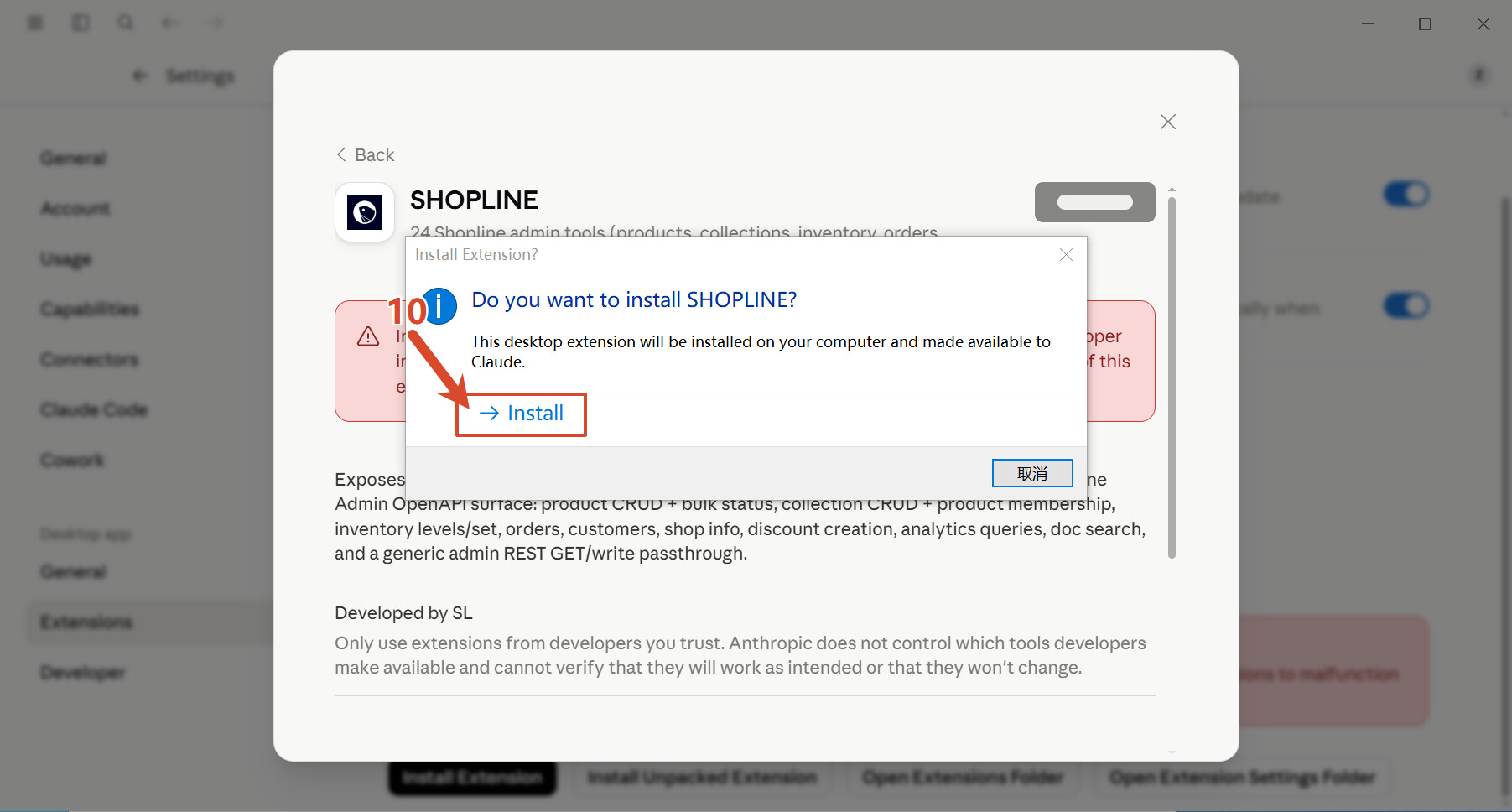
5. Configure Your Store
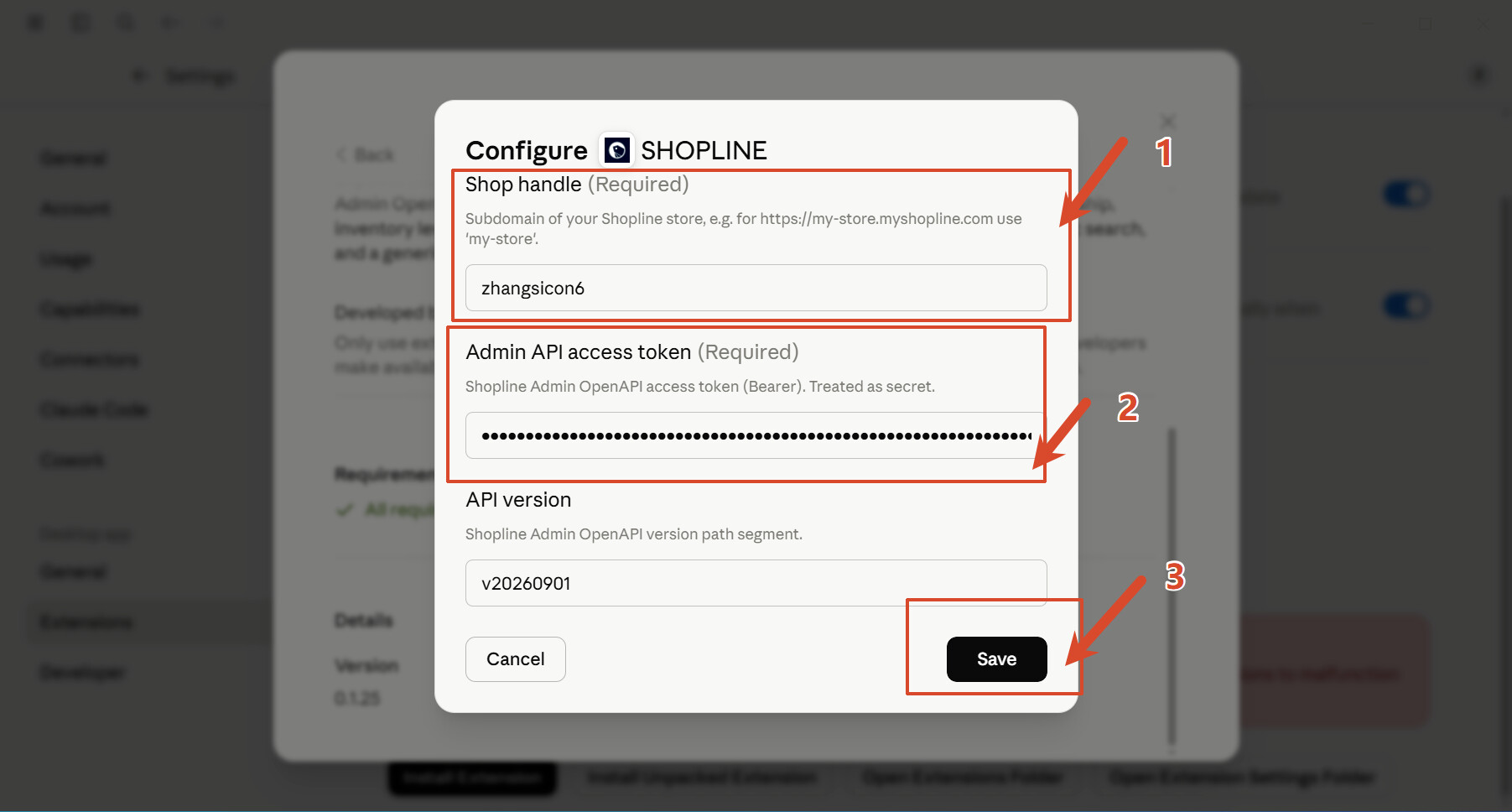
After installation, a configuration dialog will appear. Fill in the following:
-
Shop handle: your store name (the * portion of *.myshopline.com)
-
Admin API access token: your API token
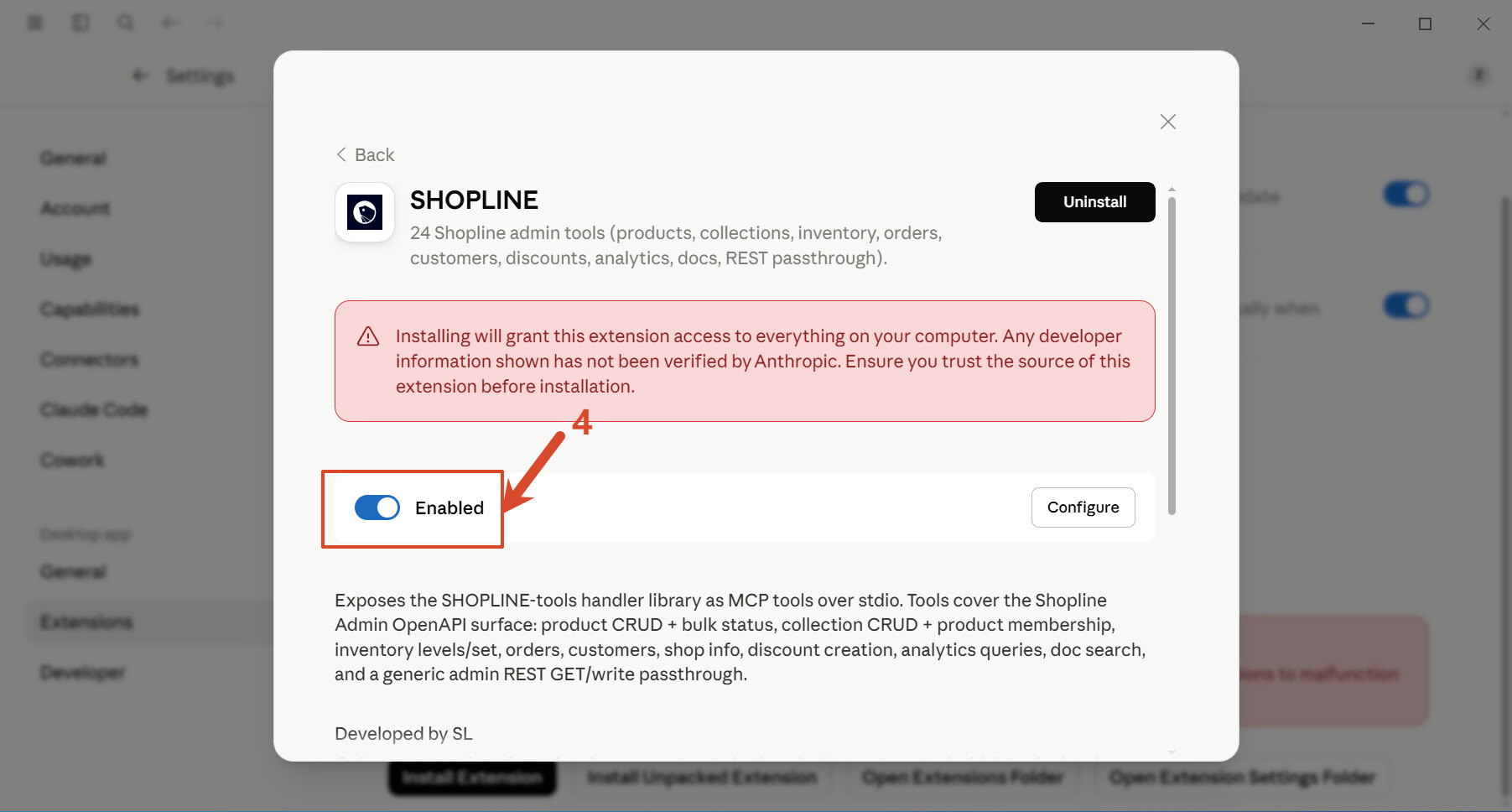
Once filled in, make sure the Enabled toggle is switched on.
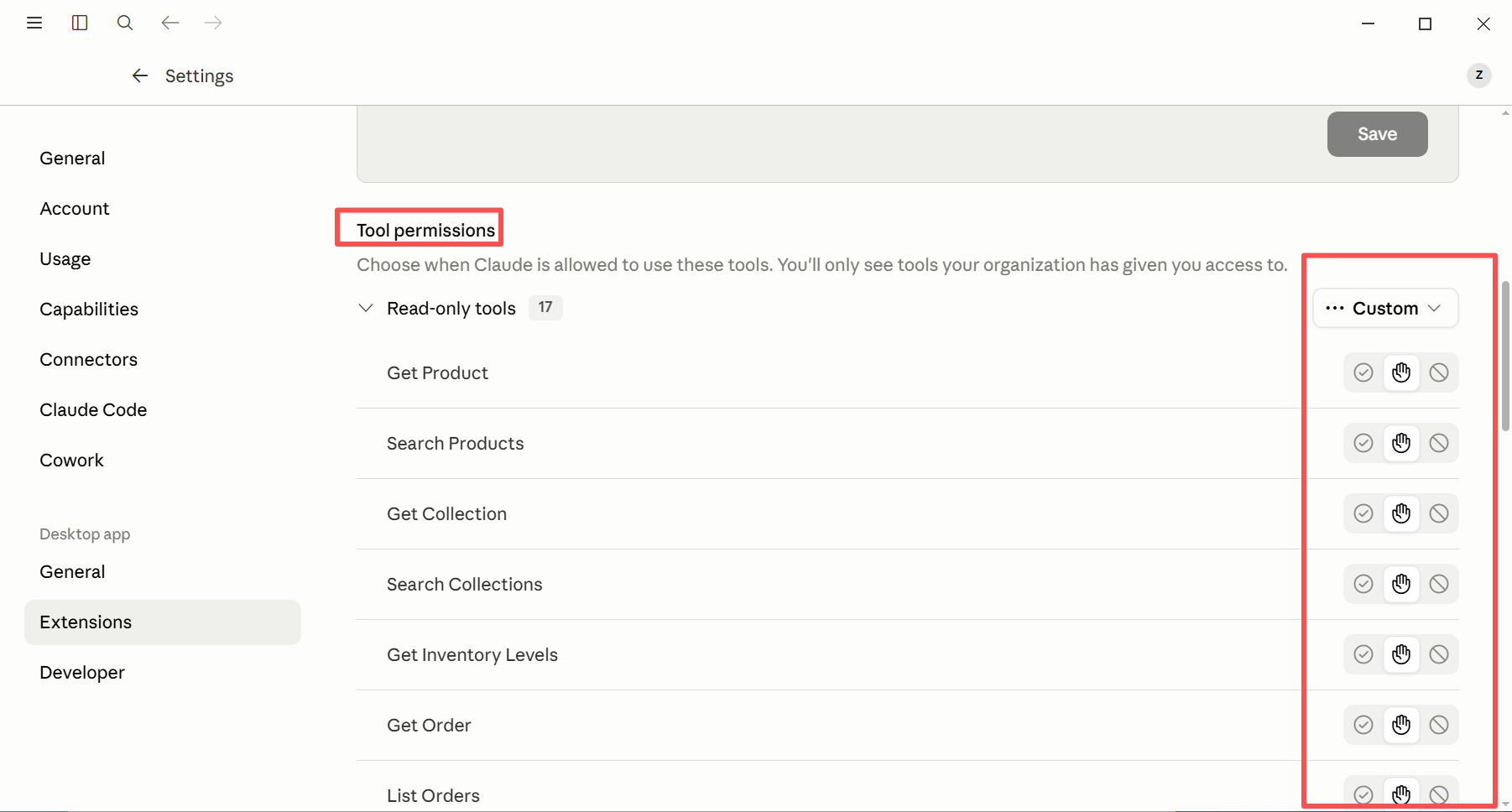
6. Configure Tool Permissions
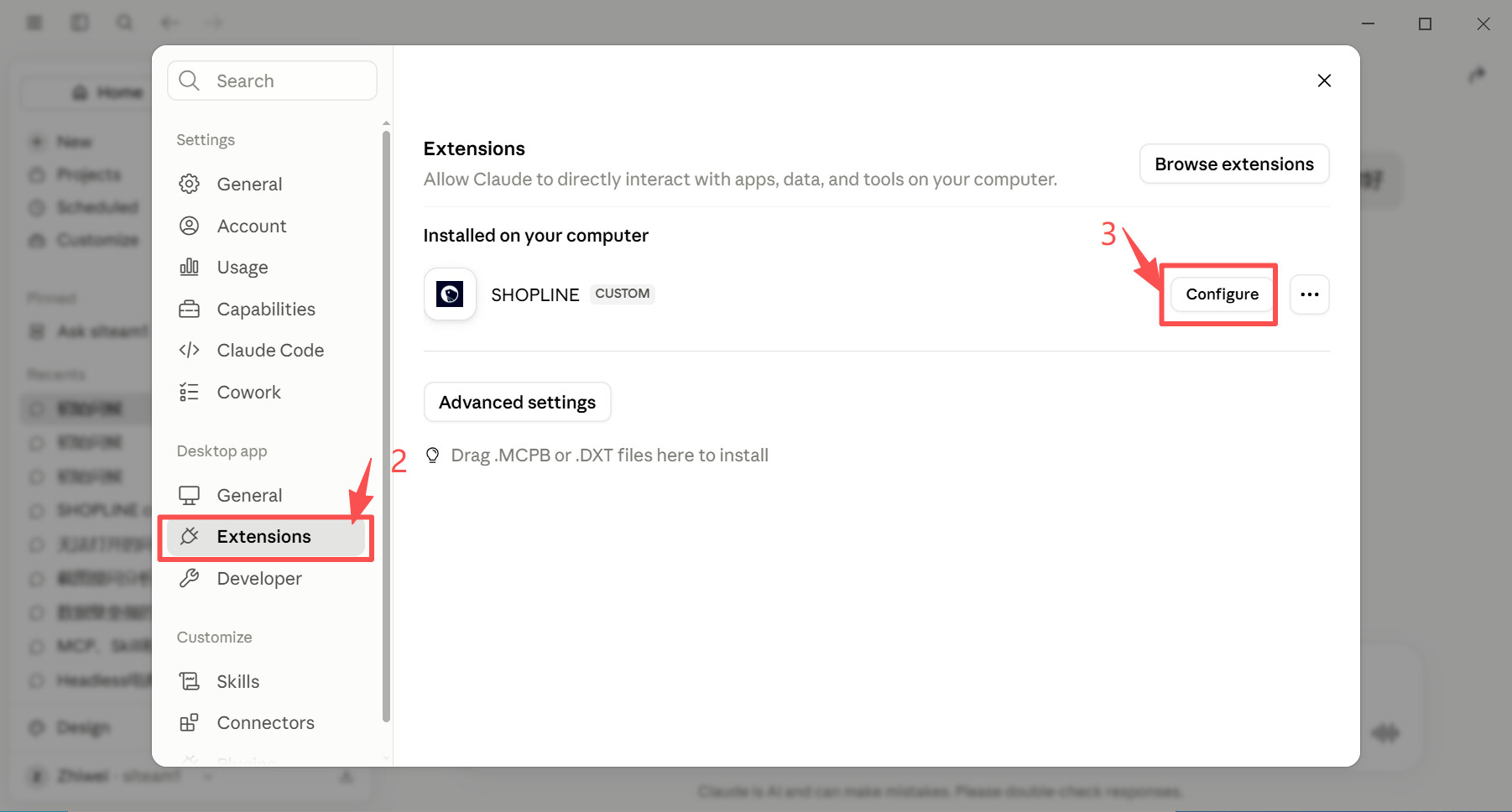
Go back to the Extensions list, find SHOPLINE, and click Configure on the right. Under Tool permissions, select Custom and enable or disable specific tools as needed.
7. Notes
Please make sure SHOPLINE in Connectors remains enabled during use.
8、Skill Integration
-
Use the following package for upload:
-
More open-source link instructions will be added later.
-
Alpha internal testing package:
SHOPLINE_Skill_For_Windows.zip (7.8 KB)
-
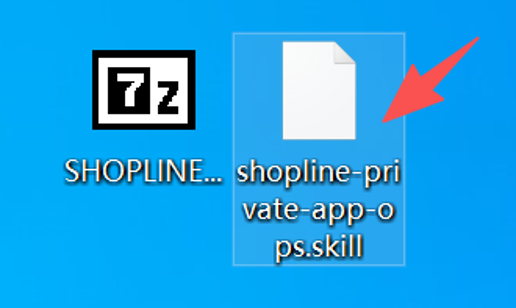
Download the package and unzip it
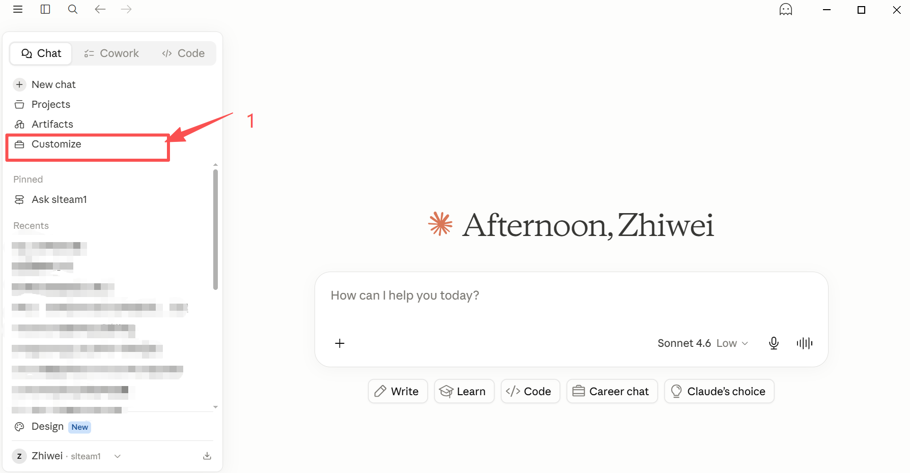
- Open Claude and click Customize
-
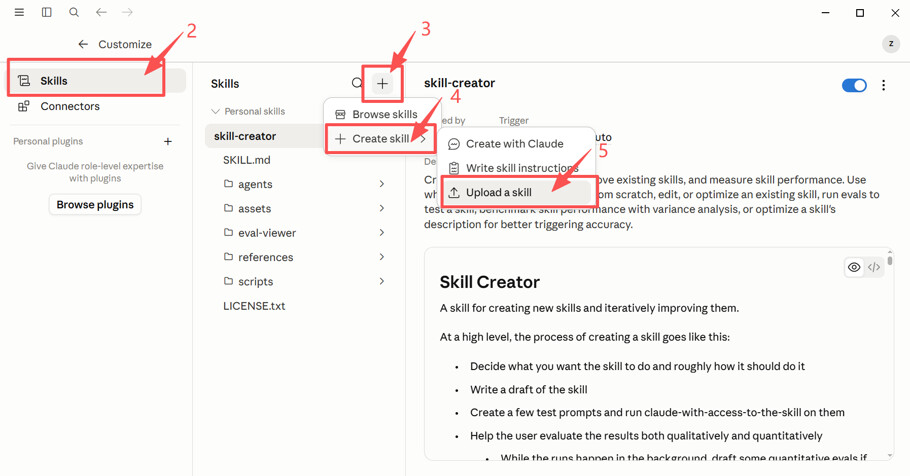
Click Skills → Click + and select Create Skill
-
Select Upload a skill and upload the shopline-private-app-ops.skill file
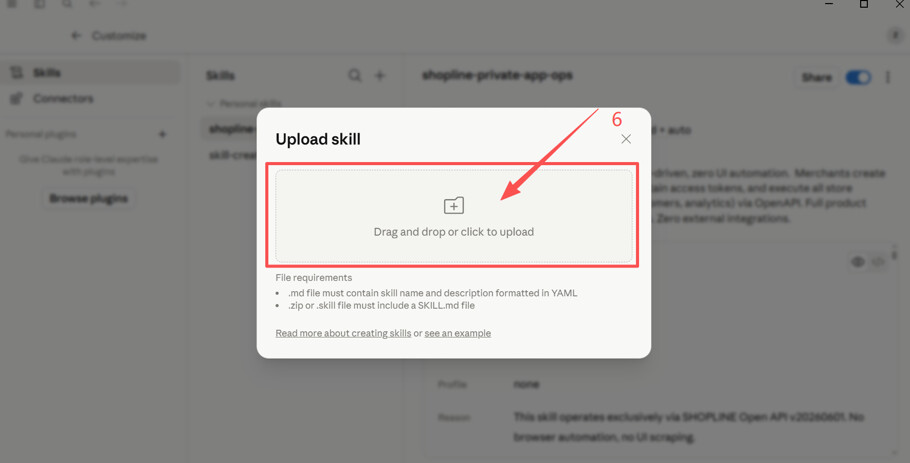
- After upload, confirm and turn on Enable
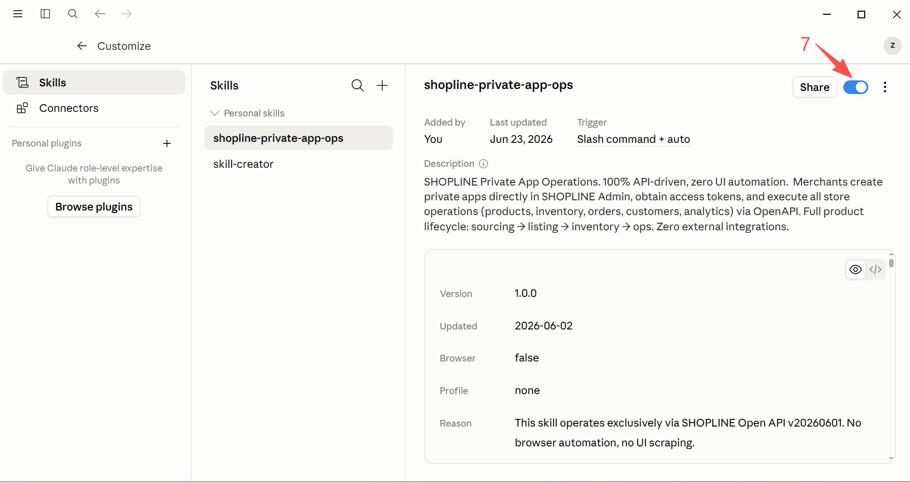
Codex Workflow (Installation packages differ between Mac and Windows, but the process is identical)
1、Prerequisites
-
Codex desktop client, SHOPLINE handle and access token and a stable network connection.
-
For local execution, Codex is the only supported runtime.
2、Setup
-
Use the following package for upload:
-
More open-source link instructions will be added later.
-
Alpha internal testing package:
MAC:SHOPLINE_Codex_For_Mac20260706.zip (4.5 MB)
Windows:SHOPLINE_Codex_For_Windows20260706.zip (4.5 MB)
-
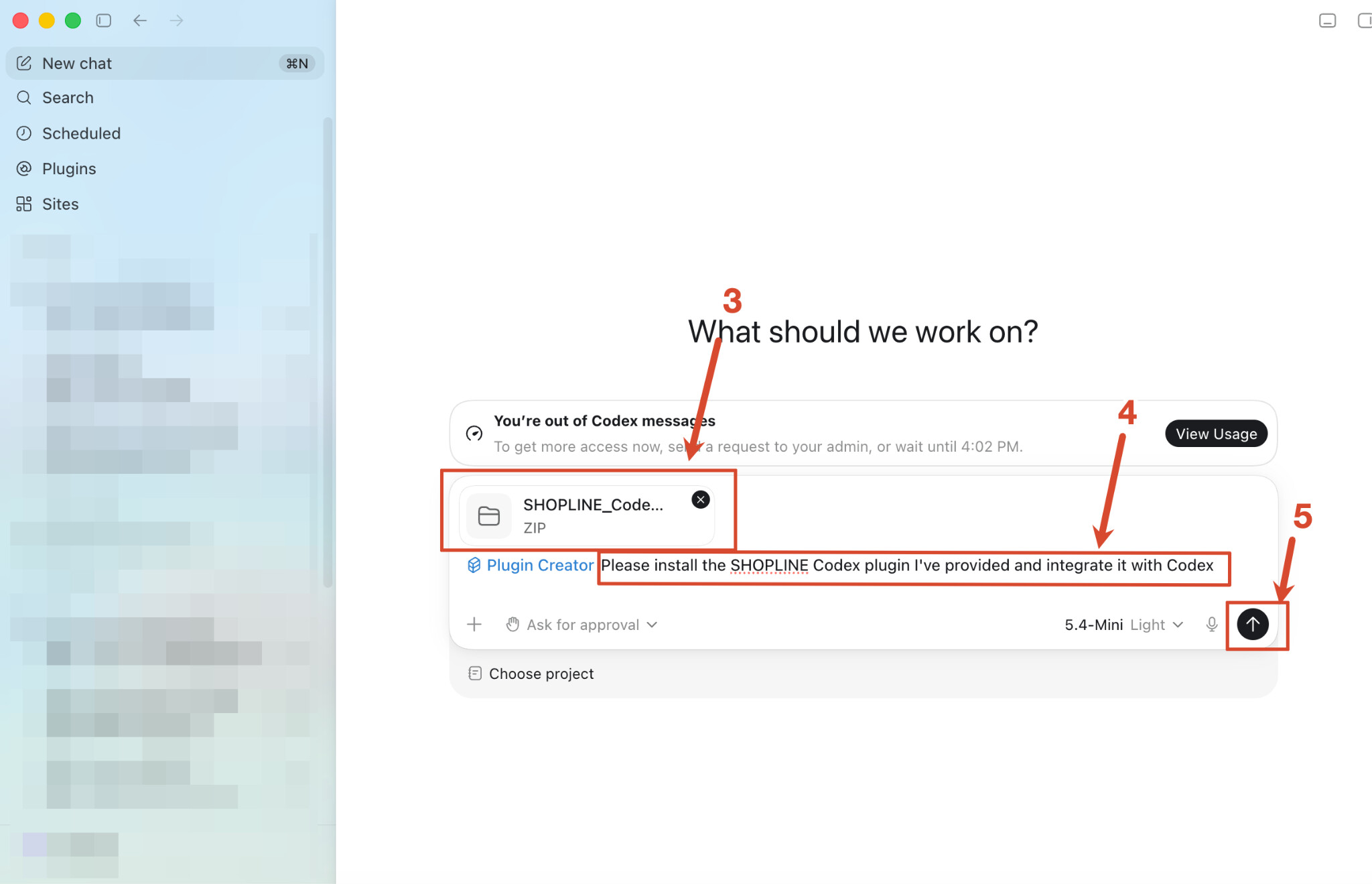
Open Plugin Creator mode in Codex
-
Upload the compressed package and enter the corresponding prompt:
Prompt: Please install the SHOPLINE Codex plugin I’ve provided and integrate it with Codex
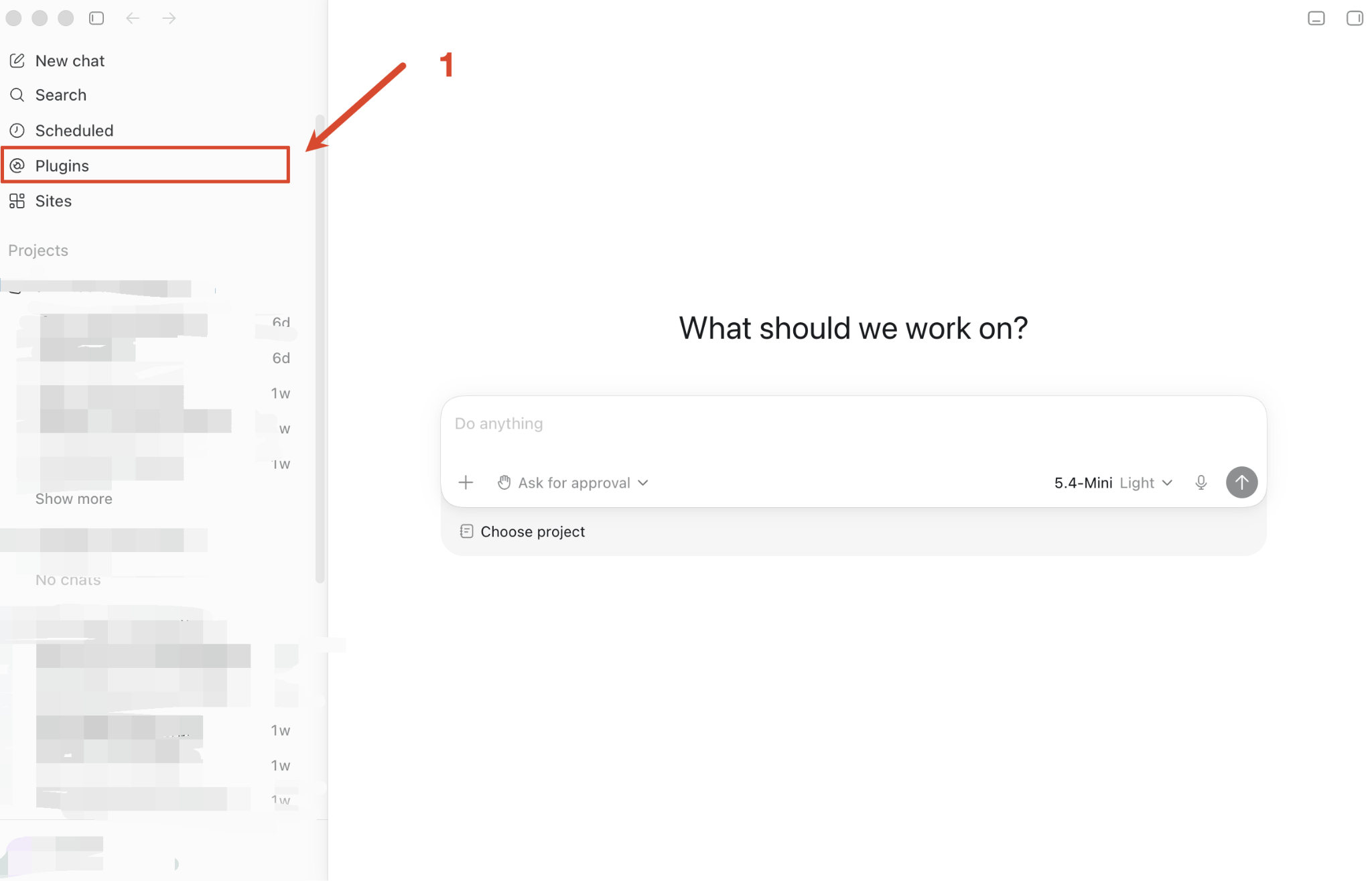
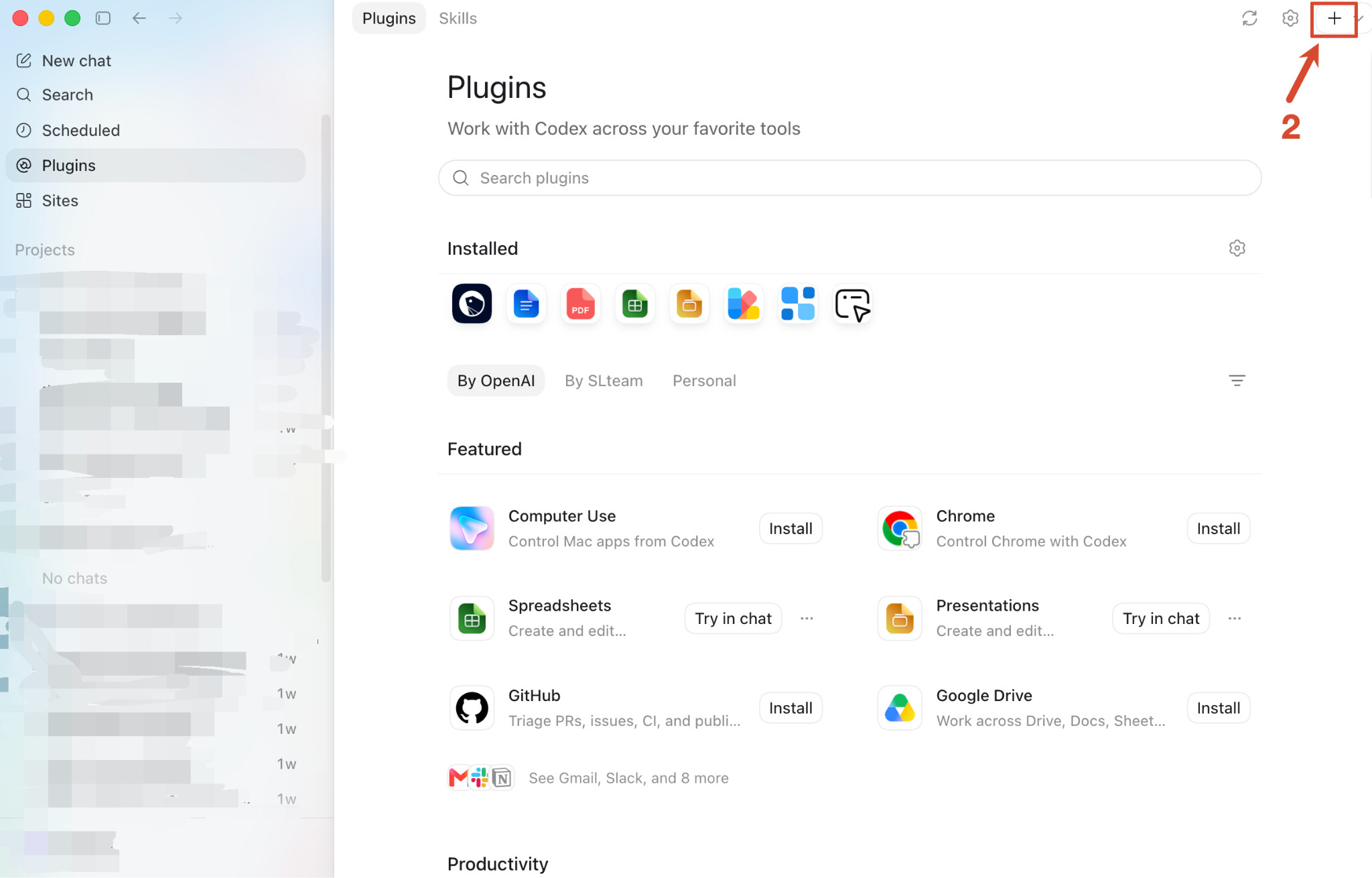
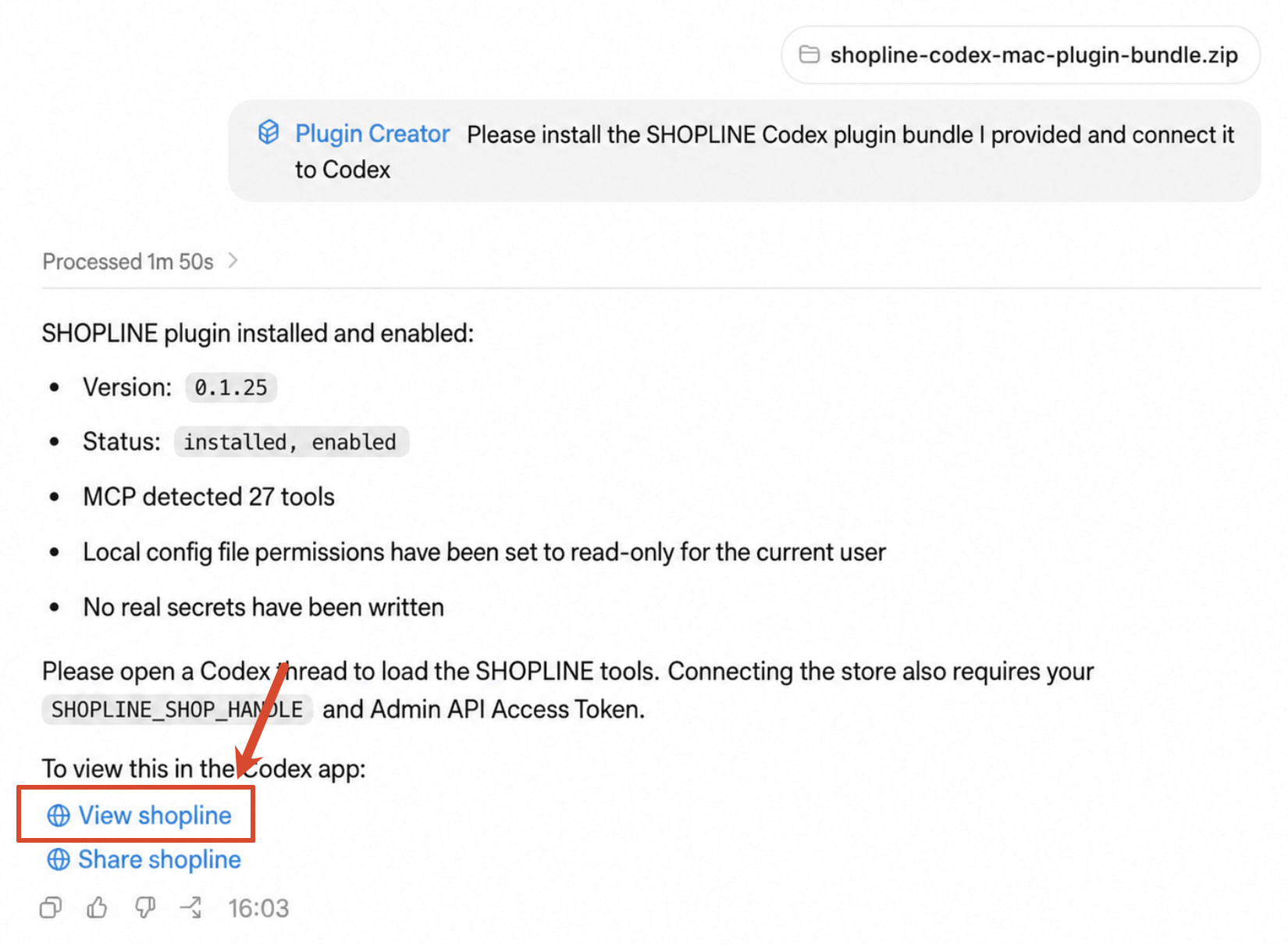
- Click View shopline, then click the Test in Chat button in the top right corner
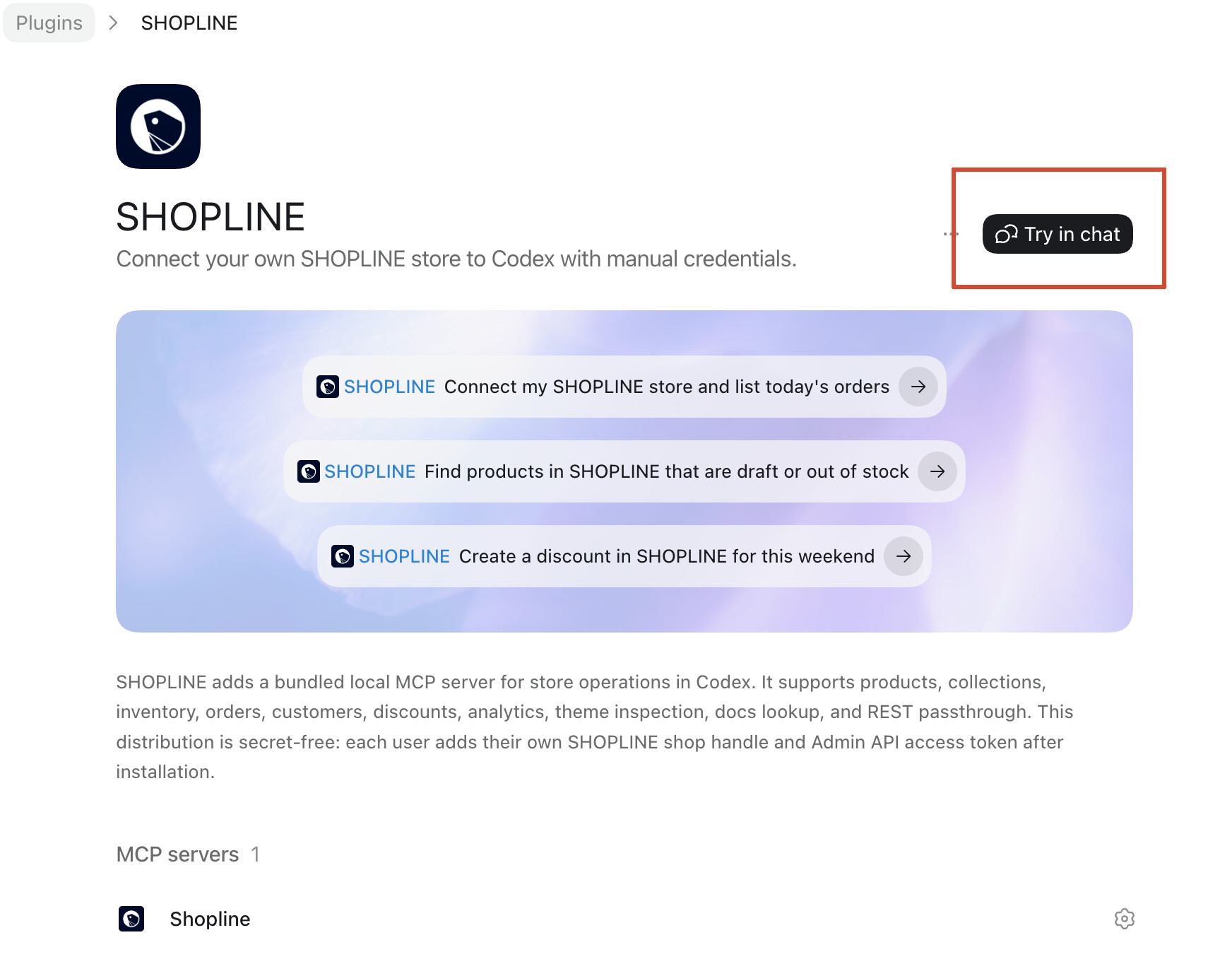
- Provide your handle and access token to complete the configuration